
A WordPress client portal where clients see progress, not files.
Share a project and the client follows its tasks, milestones and timeline, comments, and approves work. Your internal tasks, team threads and hours never reach them.
A client portal is a place where a customer logs in and follows the work you are doing for them. In Kanbanomy it is the Hub on your own WordPress site. You invite the client by email, add them to a project as a Viewer, and they see the tasks, milestones, timeline and discussions you chose to share. They cannot see Internal tasks, team-only comments, logged time or your activity log.
This page walks through the whole job. It covers setting a client up, what they see on each tab, how approvals work, what stays private and the mistakes that cause most leaks. Then it lists the limits, so you can decide before you start.
How does the Client role work?
Kanbanomy installs a site role called Client. A user with that role can read the projects they were added to and comment on the tasks they can see. They cannot manage anything or submit projects. They get no wp-admin. If a client opens /wp-admin/, they are sent to the Hub, and they can still reach their own profile to change a name, email or password.
Two settings decide what a person can do, and both must allow it. The site role comes first. The project role comes second, and for a client it is always Viewer. The invite form even locks the Project role box to Viewer with the note that clients are always viewers.
A client who also holds an editing role, such as Editor, is treated as a regular WordPress user and keeps wp-admin. Keep client accounts on the Client role alone.
How do you add a client by invitation?
You can have a client in the portal in about two minutes.
- Open the project and go to the Team tab.
- Click Add or invite people.
- Under Invite by email, enter the client’s email address.
- Set Invite as to Client.
- Click Send invite.
For a new address, Kanbanomy creates an account with the Client role and sends one email that says your site shared the project with them. The email has one link. The client chooses a password and lands on their project. A client who already has an account is added the same way and gets the same short email.
You can also add an existing user from Add an existing user and choose the Viewer role.
If the email never arrives, the cause is almost always your site’s mail setup. Kanbanomy sends through WordPress, so install an SMTP plugin. In the meantime the client can use the Lost your password link on the login page.
What does a client see, tab by tab?
The Hub is the client’s front door. It shows a greeting and their projects, twelve to a page, with status, progress, dates, open and late counts and the next milestone. It also lists upcoming and late milestones and a Waiting for your approval list. It leaves out task stats, quick actions, My Tasks, activity, team avatars and calendar feeds.
Inside a project the client has six tabs.
| Tab | What the client gets |
|---|---|
| Overview | Title, description, dates and progress. The budget only if you turned it on for the project |
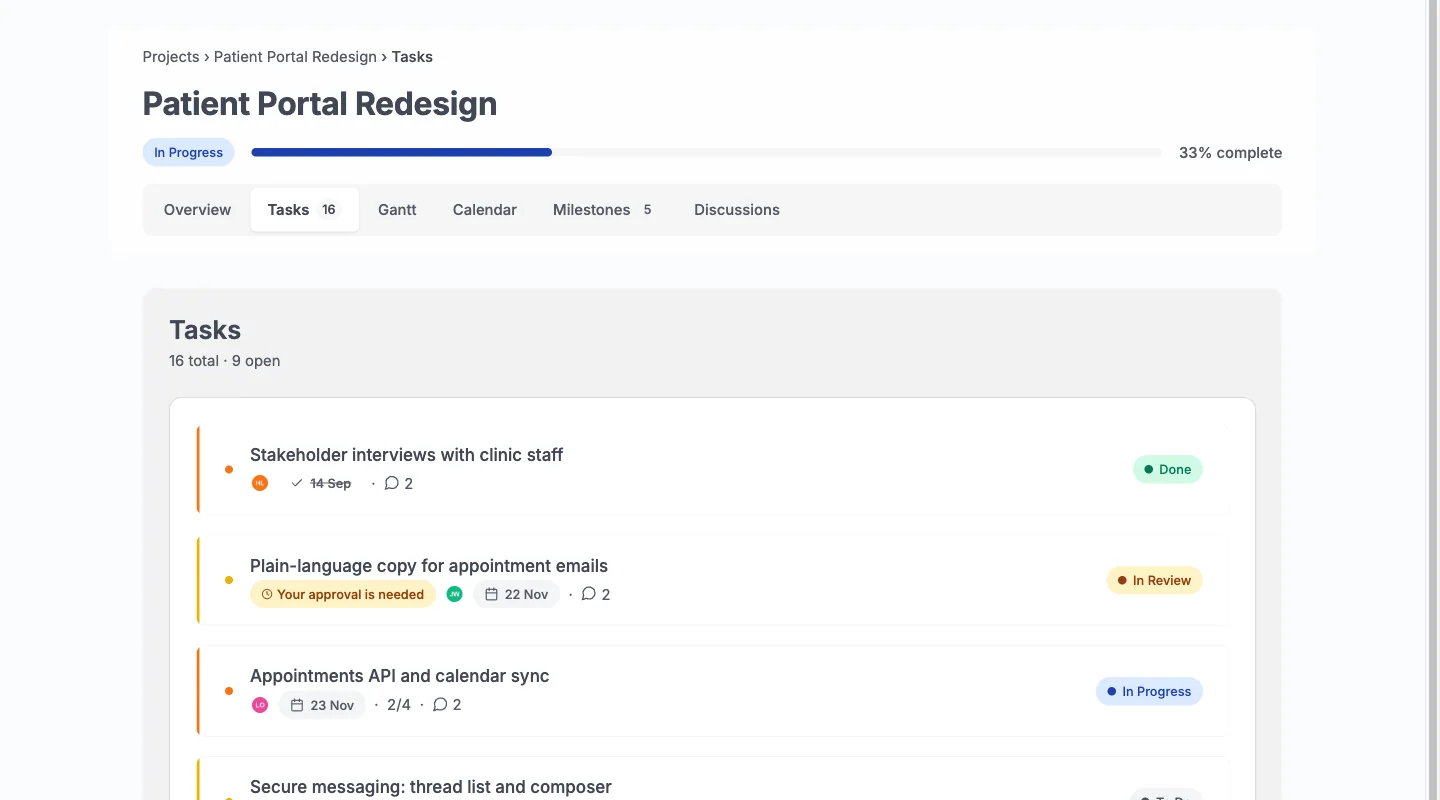
| Tasks | Title, status, due date, priority and milestone for every task not marked Internal |
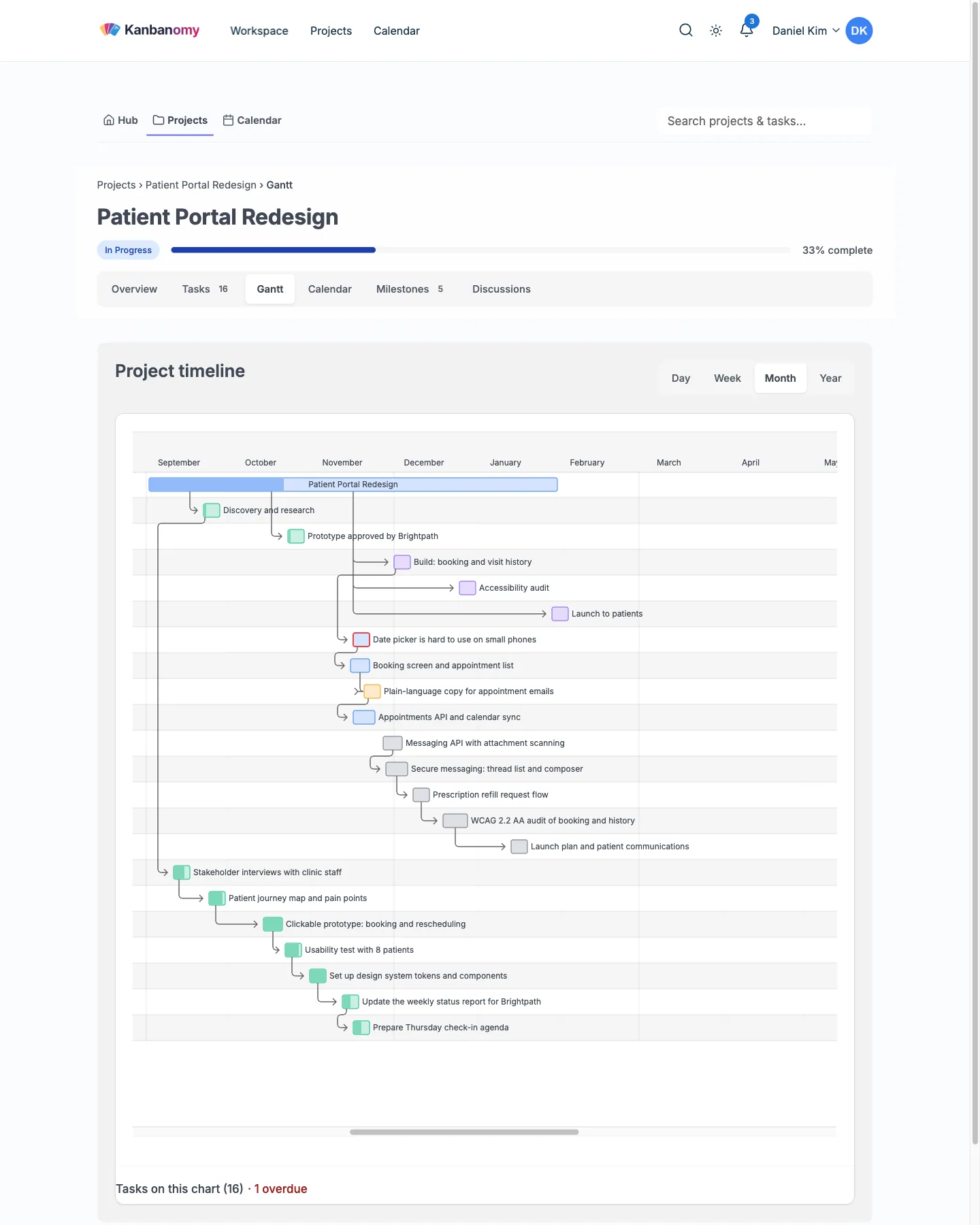
| Gantt | The timeline of the tasks they can see |
| Calendar | Due dates and milestones by month |
| Milestones | The larger checkpoints |
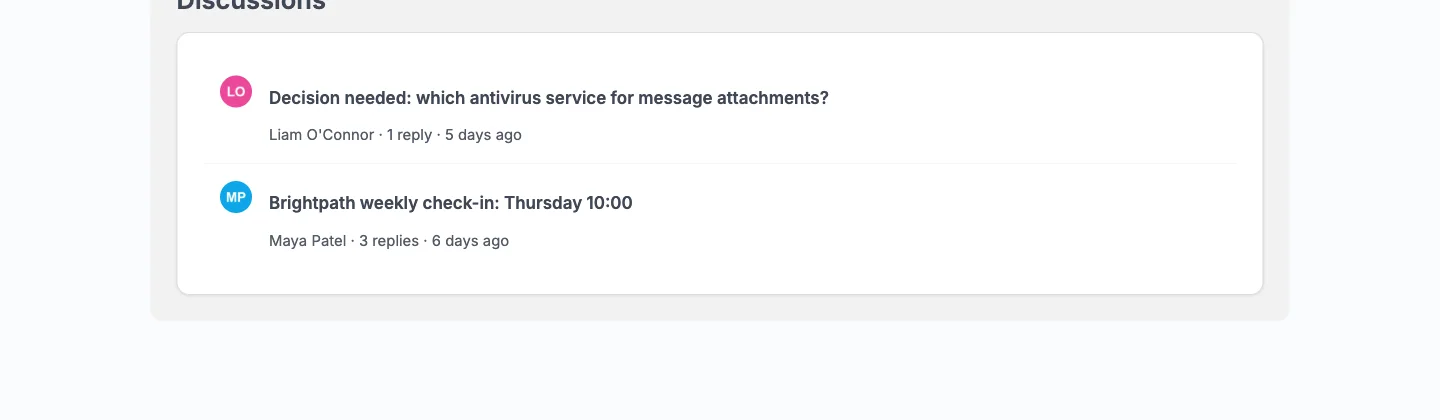
| Discussions | Only the threads your team shared with clients |
A client does not see the Board, the Activity tab or the Team tab.
Open a task and the panel shows the title, status, dates, priority, milestone, description, checklist and comments. It does not show team-only comments, watchers, logged time, custom fields or activity. The client can post comments, and edit or delete their own. They cannot move a task, change a date or start a timer, because those controls are not there.
What are Waiting for client and approvals?
Approvals are how you get a yes without an email thread. Open a task and tick Needs client approval. The box appears once the project has at least one client. The switch is off on an Internal task, because clients cannot see those.
Here is what happens next.
- Every client on the project gets an email and a bell notice that says Your approval is needed, with a button to the task.
- Your team sees a Waiting for client chip in lists and on the Board.
- The client sees a Your approval is needed chip and a banner on the task.
- The client clicks Approve, or Request changes and writes what should change. A change request is posted as a comment.
- The person who asked gets an email and a bell notice saying who answered.
Some rules are worth knowing. Any client on the project can answer, and the first answer counts. A second client sees Already answered by the first one. Approving does not change the task’s status, so you move the task yourself when you are ready. To ask again after changes, tick the box again. Every round stays in the activity history, and you can untick it to withdraw a request nobody has answered.
Pending approvals also show in the Approvals screen in wp-admin. When client digests are on, they show as Waiting for your approval in the client’s daily digest.
How do shared and team-only discussions differ?
Tasks are about one piece of work. Discussions are for everything else, such as a kickoff, a question or a weekly update. Each project has a Discussions tab.
When your team starts a thread, a switch called Clients can see decides who reads it. Leave it off and the thread stays with your team. Turn it on and the project’s clients can read it and reply.
A client can reply, and can edit or delete their own replies. A client cannot start a thread. A team-only thread is hidden from clients everywhere, including the tab, search, notifications, emails, the digest, Slack, BuddyPress and the REST API. A client who opens its link sees Discussion not found.
You can flip a thread either way later. Select Make team-only to pull a thread back, or Share with clients to open one up.
The same idea applies to single comments. Tick Team only under the comment box and that comment stays away from clients in every place a comment can show. Clients cannot post team-only comments, and a reply to one is team-only too.
How do Internal tasks keep work private?
Tasks are visible to clients unless you mark them Internal. That default matters, so build the habit early.
To mark a task, open it and, under Clients, tick the box labelled Internal (hidden from clients). To mark several at once, use the bulk action on the Tasks tab, which reads Mark: Internal (hidden from clients). In a CSV import you can map a column to the Internal flag with yes or no.
An Internal task disappears for clients from the task list, the Hub counts, late work, search, calendar feeds, notifications and emails. Subtasks follow their parent. Your team sees an Internal badge on these tasks everywhere. A client who somehow reaches an Internal task’s link sees Task not found.
Your team can @mention a client only on a task the client can see. On an Internal task the client is not offered in the mention list.
How do you control budget visibility?
The budget is hidden from clients by default. Priority is always visible.
- Open the project and go to the Settings tab.
- Enter the amount in Budget.
- Under Client can see, tick Budget if the client should see it.
- Save the project settings.
Only the project owner or a Kanbanomy manager can change the switch. With it on, the client’s Overview shows the budget line. With it off, the line is not there. If you tick the box before entering an amount, nothing shows, because the project has no budget yet.
What notifications do clients get?
Clients get notices only about tasks and discussions they can see. That covers comments, replies, @mentions and approval requests. They never get a notice about an Internal task, a team-only comment or a team-only discussion.
A client comment emails the task’s assignees and watchers, like any comment. In a comment a client can mention people on your team, and never another client.
Each client can switch events off under Notifications in the Hub. Client digests are off by default. If you turn them on under Settings, Notifications, a client gets one morning email, which only shows their own mentions and never lists an Internal task.
Email delivery belongs to your site, so a working SMTP setup is part of running a portal.
What do clients never see?
This is the list to read to a nervous customer.
- Tasks marked Internal, with their comments and files.
- Team-only comments and discussions.
- The Board, the Activity tab and the Team tab.
- Logged time and hour totals.
- Watchers and custom fields.
- The AI assistant, whatever you tick.
- Any wp-admin screen.
- The budget, unless you turned it on for that project.
The protection is enforced in two places. The pages leave the controls out, and the API refuses a write even if someone crafts the request by hand. A project someone cannot open answers with a 404 that matches a project that does not exist, so a hidden project is not confirmed to be there.
How does it protect privacy and security?
Your client data lives in your own database. The only outbound request the plugin makes is the licence check, which sends your key and site address and never your content.
Visibility on a new project defaults to members only. Members-only and private projects are never served to anonymous visitors and never indexed by search engines. If you change the default to public, new projects become readable by anyone with the link, and existing projects do not change. Public projects show a visitor who is not a member only the Overview, Gantt and Milestones.
File attachments sit in a protected folder with random names. Each download runs through a permission check, so a guessed path does not work. On nginx, add a deny rule for that folder as extra protection.
Personal data requests run through the WordPress export and erase tools. Erasure keeps shared project history but removes the link to the person.
What does a client onboarding walkthrough look like?
Use the same short routine for every new client.
- Create the project and add the tasks the client should follow.
- Mark any private task Internal before you invite anyone.
- Decide on the budget switch for this project.
- Invite the client from the Team tab.
- Open a private browser window, sign in as the client and look at the Hub and the project.
- Send the client a two-line note with the Hub address and what you will ask of them.
- Start a shared discussion called Welcome so they have somewhere to ask a first question.
Step five is the one people skip. It takes a minute, and it is the quickest way to prove an Internal task or the budget is hidden the way you meant. You can also send new clients the member and client quick start from the docs.
What mistakes cause most leaks?
Almost every leak traces back to one setting you can check in a minute.
- A task stays visible because it was never marked Internal. The default is visible. Check the box on the task.
- A client joined through a BuddyPress group. People brought in by a linked group join as Members, so a client who arrives that way sees Internal tasks, team-only comments and the team list. Add clients by invitation, not through a group.
- A client has an Editor role too. They keep wp-admin and are treated as a regular user.
- The budget switch is on and nothing shows. The project has no budget yet.
- A client cannot see their project. They are missing from the Team tab, or they are not a Viewer.
- The client sees a 404. They are logged out, or logged in as the wrong account. Check that first.
What are the limits of the portal?
Be straight with clients and with yourself about these.
- Clients cannot request timeline changes. They comment and approve.
- Clients cannot create tasks or start discussions.
- There is no invoicing, so billing stays in your own tool.
- There is no native mobile app, though the interface is responsive in a phone browser.
- There are no bundled translations, so a portal in another language needs a .po file.
- Email delivery depends on your site.
There is no per-client fee. Clients are users of the site you already host, so adding fifty costs the same as adding five. You pay per site, with no per-user and no per-project fee.
Ready to see it as a client would? Try the demo and sign in with the client login, or read the client portal documentation for the full reference. When you are ready to run it on your own site, get Kanbanomy.
One project, two views.
Clients get a Client role with no wp-admin. They open the Hub and see their projects with status, progress and the next milestone, plus a Waiting for your approval list.
Inside a project they see Overview, Tasks, Gantt, Calendar, Milestones and Discussions. Nothing else.
What a client can see.
This is what the plugin enforces for every shared project.
| In a shared project | Your team | A client |
|---|---|---|
| Shared tasks and milestones | Yes | Yes |
| Gantt and calendar | Yes | Yes |
| Comments on a task | Yes | Yes, and edit their own |
| Approve a task or ask for changes | Asks | Answers |
| Discussions shared with clients | Starts and replies | Replies |
| Tasks marked Internal | Yes | Never |
| Team-only discussions and comments | Yes | Never |
| Board, activity and team list | Yes | Never |
| Logged time | Yes | Never |
| Budget | Yes | Only if you show it |
| wp-admin | By role | Never |
Approvals without the email thread.
Ask a client to approve a task. It shows as Waiting for client on your board and Your approval is needed on theirs. They approve or ask for changes in one click, and the answer lands in the task.
Discussions work the same way: each thread is team only or shared, so a client sees the conversation you meant them to see.
Set up a client in four steps.
- Add the client as a user with the Client role, or invite them by email.
- Open the project's Team tab and add them with the Viewer project role.
- Mark anything private as Internal, and choose which discussions are shared.
- Decide whether the budget shows for this project. It is hidden by default.
Client portal questions
Is there a per-user or per-project fee?
No. Kanbanomy runs on your own WordPress site, so your team and your clients are users of a site you already host. Add as many people, clients and projects as you like. The licence is priced per site, and a one-time lifetime licence is available.
Is there a WordPress client portal plugin with boards and approvals?
Kanbanomy is one. Clients get a Client role with no wp-admin, follow the tasks, milestones and Gantt you share, comment, and approve work when you ask. Internal tasks, team-only discussions and logged time never reach them.
Is it self-hosted project management software?
Yes. It runs on your own WordPress and stores everything in your own database, so there is no separate server to run and no per-seat fee. The only outbound request is the licence check.
Can clients see my internal tasks or the budget?
No. Clients get a Client role with no wp-admin. Tasks marked Internal, team-only comments and discussions, activity and the team list stay with your team. The budget stays hidden unless you switch it on for a project.
Give clients a view they can trust.
Self-hosted project management with no per-user fee, no per-project fee and a one-time licence. Try the demo first, then pick the licence that fits your sites.