
How to choose a WordPress project management plugin
A WordPress project management plugin adds projects, tasks, boards and timelines to a site you already host, so your data stays in your own database. Pick one by checking data location, client access, views, time tracking and licence terms.
A WordPress project management plugin turns the site you already run into a workspace for projects, tasks, deadlines and people. You install it like any other plugin. Your projects, comments and hours are stored in your own database, so there is no second account to pay for and no vendor holding your data.
The right plugin depends on four things. Where the data lives, who else needs access, which views your team works in, and what the licence does when it expires. This page gives you a way to check each one, then shows how Kanbanomy answers them.
Who needs a project management plugin inside WordPress?
Most teams that choose this route already live in WordPress. They build sites, run a community, sell courses or manage a membership. Their staff and clients already have logins. A plugin reuses those logins instead of creating a second set in another tool.
You are a good fit if one or more of these sounds familiar.
- You run client projects and want clients to see progress without a separate login system.
- You pay a monthly fee per seat elsewhere and the bill grows every time you hire.
- You need project data to stay on a server you control, for contract or privacy reasons.
- You want the same people, roles and theme you already use on the site.
- You prefer to pay once for a tool and keep using it.
You are a poor fit if you need invoicing, a sales pipeline or a native phone app. Those limits are covered near the end of this page.
What kinds of WordPress project management plugins exist?
Plugins in this category sit on a ladder. Knowing the rung you need saves you from buying too little or too much.
| Kind | What you get | Typical gap |
|---|---|---|
| Task list only | A list of to-dos with due dates and assignees | No board, no timeline, no client view |
| Board style | Columns you drag cards through | Often no time tracking or reports |
| Client portal | A login area where customers follow a project | Often thin on internal planning |
| Full project suite | Lists, boards, timeline, time, reports and a portal | More to learn on day one |
A task list is fine for a team of three with one site to maintain. A board suits a content calendar. A portal suits freelancers who mostly need to show progress. A full suite suits an agency, because the planning, the hours and the client view all touch the same task.
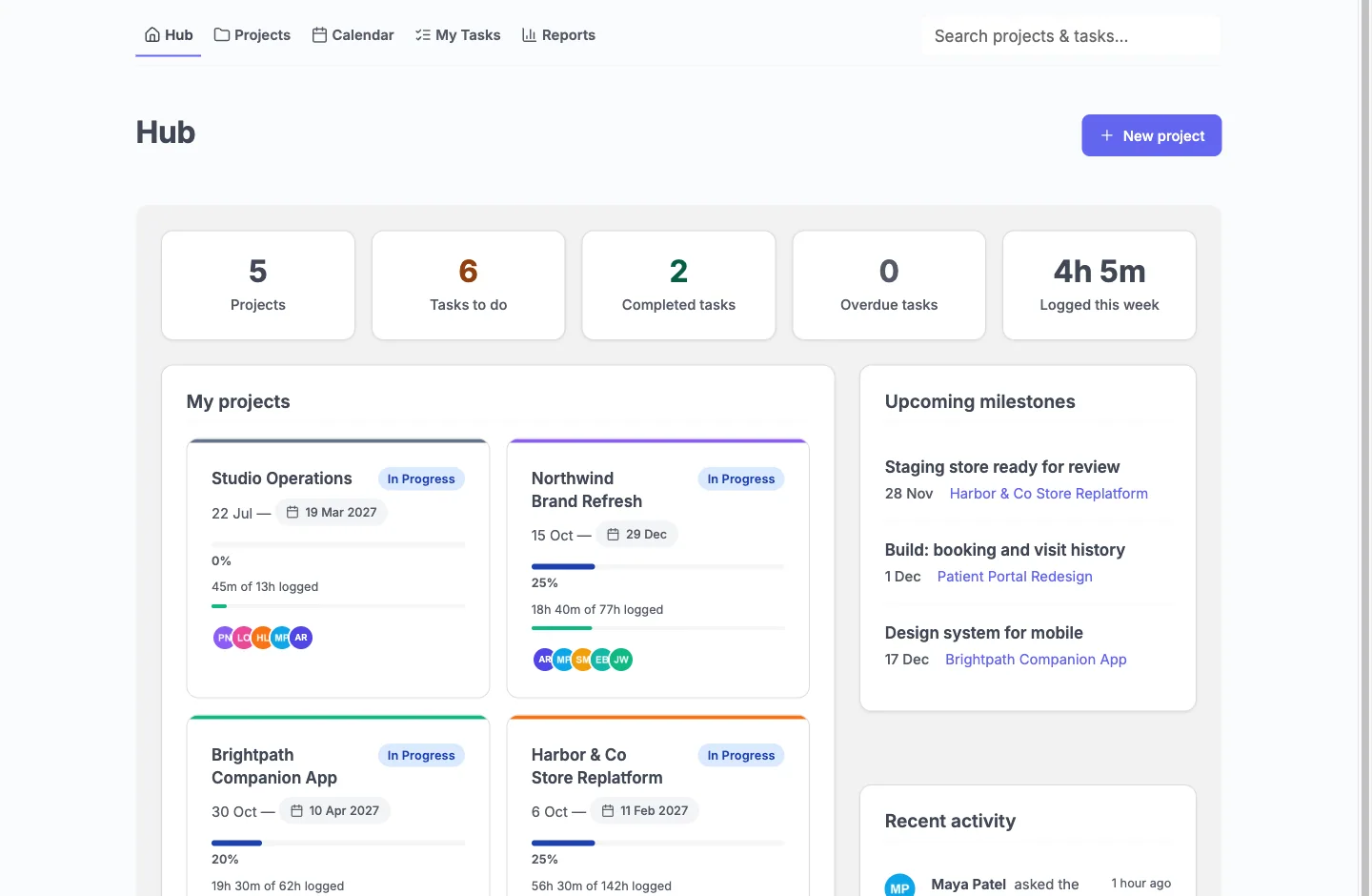
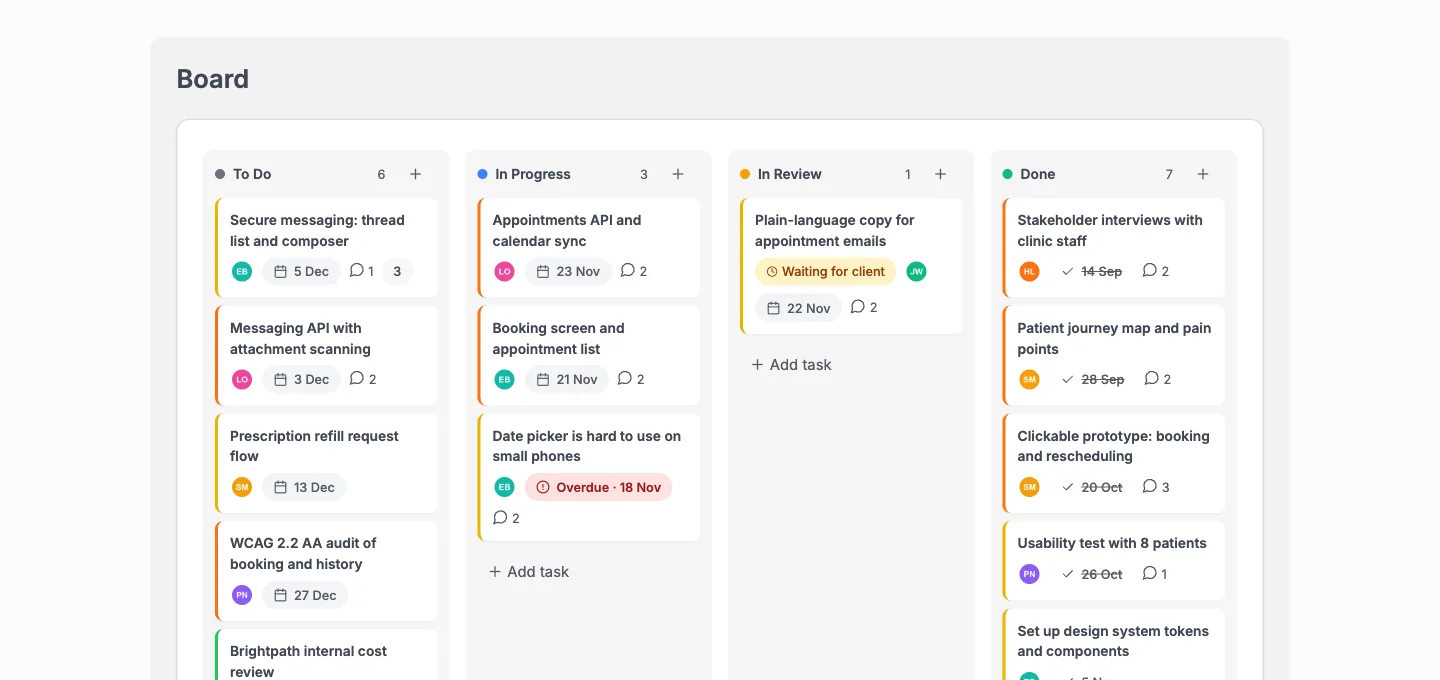
Kanbanomy is in the last group. It shows the same task in four views, so you move it once and every view agrees.
How do you choose a WordPress project management plugin?
Work through this checklist before you buy anything. Each line is a question you can answer from the plugin’s own documentation, which is why it is worth reading the docs first.
- Where does the data live? Look for the plain answer. A good plugin states that data sits in your database and says what, if anything, it sends out.
- What does a client see? Ask whether a client needs a wp-admin login. Ask what stays hidden from them, such as internal tasks, team comments and hours.
- Which views are included? A list, a board, a timeline and a calendar each answer a different question. Check that they read the same data.
- Is time tracking built in? If you bill by the hour, you want a timer and an estimate against logged comparison on the task, not a second tool.
- Can you import what you have? Look at what comes across and, more usefully, what stays behind.
- Is there scale evidence? A claim of “fast” is not evidence. Look for the size of the test site and the measured server times.
- What happens if the licence lapses? Some plugins lock features. Some keep working. Read the terms.
- What does support cover? Find out what is included and for how long.
- What is the pricing model? Per user, per project and per feature all change what the tool costs at scale.
- What does it not do? A plugin that lists its limits has been honest with you.
Print this list and score two or three candidates side by side. The one that answers the most lines in writing is usually the safer buy.
What does Kanbanomy include?
Kanbanomy groups its features into four areas, and all of them are in every licence. Each has an off switch under Settings, and there are 15 feature toggles in total.
| Area | What it covers |
|---|---|
| Plan | Task list, Board, Gantt timeline with dependency arrows, calendar with .ics export, project templates |
| Do | Status, priority, several assignees, due dates, labels, subtasks, dependencies, checklists, comments with @mentions, custom fields, attachments, recurrence |
| Track | Timer and manual time entries, billable and non-billable hours, estimates against logged, reports with CSV export |
| Share | Client role, Viewer project role, Internal tasks, approvals, shared and team-only discussions, intake forms |
It also connects to the rest of your stack. You can post updates to Slack through an incoming webhook, send signed webhooks to other tools and link a project to a private BuddyPress group. An optional AI assistant is off by default, uses the AI provider set up in WordPress, and sends only what the person asking can already see.
Developers get a REST API, a module system and a documented hook surface. The full feature list is on the features page.
What does a Gantt timeline add to a plugin like this?
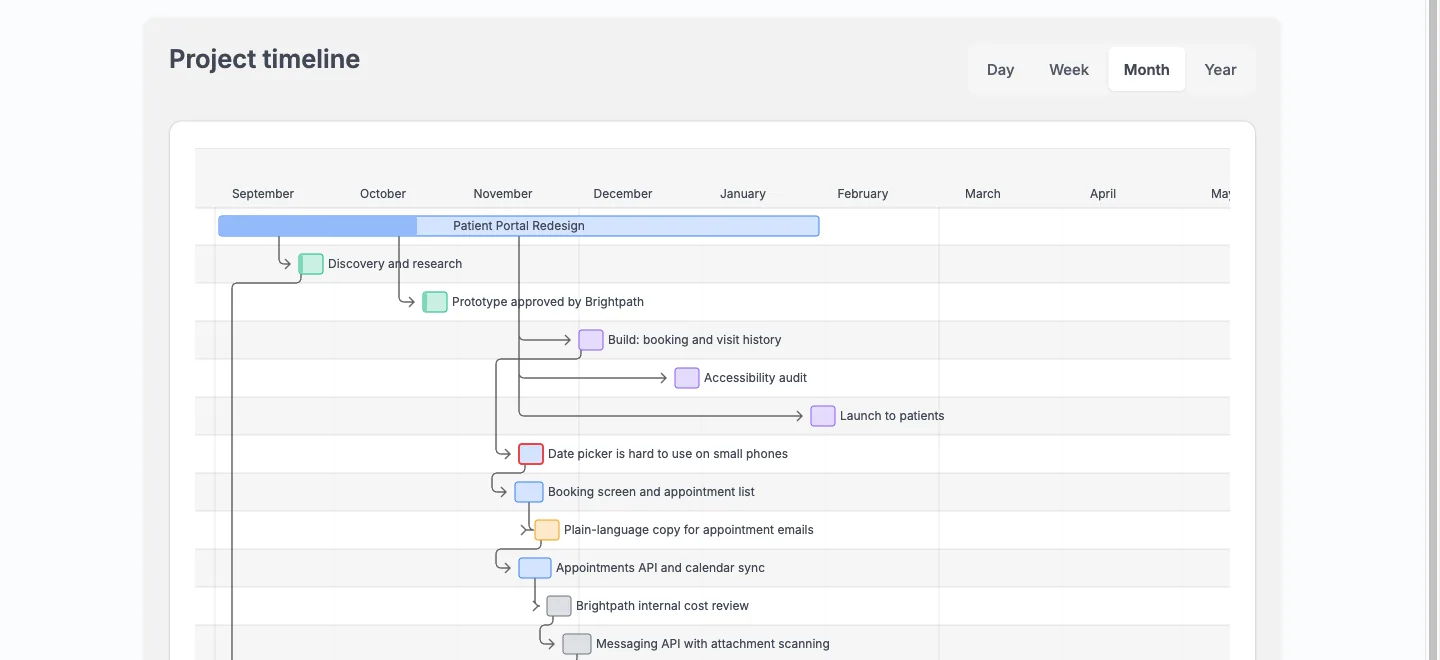
A list tells you what is due. A timeline tells you what will collide. When a task depends on another, the arrow between them shows which one is holding the schedule.
In Kanbanomy the Gantt chart plots projects, milestones and tasks as bars, with dependency arrows between linked tasks. Overdue work is marked. You can switch between day, week, month and year scales. A project’s Gantt tab plots up to 200 dated tasks, with open work first.
The calendar view covers the other need, which is deadlines by month. It spans every project a person can open, and any calendar can be exported as an .ics file. Each person can also get a private subscribe link for Google Calendar, Apple Calendar or Outlook.
How do people and clients get access?
Access works at two levels, and both must allow an action. The first is the site role. Kanbanomy adds a Project Manager role, a Member role and a Client role, and you can edit what each may manage, submit or view under Settings, Access. The second is the project role, which is Owner, Member or Viewer on each project.
A client is always a Viewer. You invite them by email from a project’s Team tab. Kanbanomy creates the account, sends one email with a link, and the client lands on the Hub. They see the shared tasks, the Gantt, the calendar and milestones, and the discussions you chose to share. They can comment and answer an approval request. They never see tasks marked Internal, team-only comments, activity, the team list or logged time.
New projects default to members only. A project that someone cannot open answers with the same 404 as a project that does not exist, so nobody learns that it is there. The client portal guide covers the setup step by step.
What can you bring over from another tool?
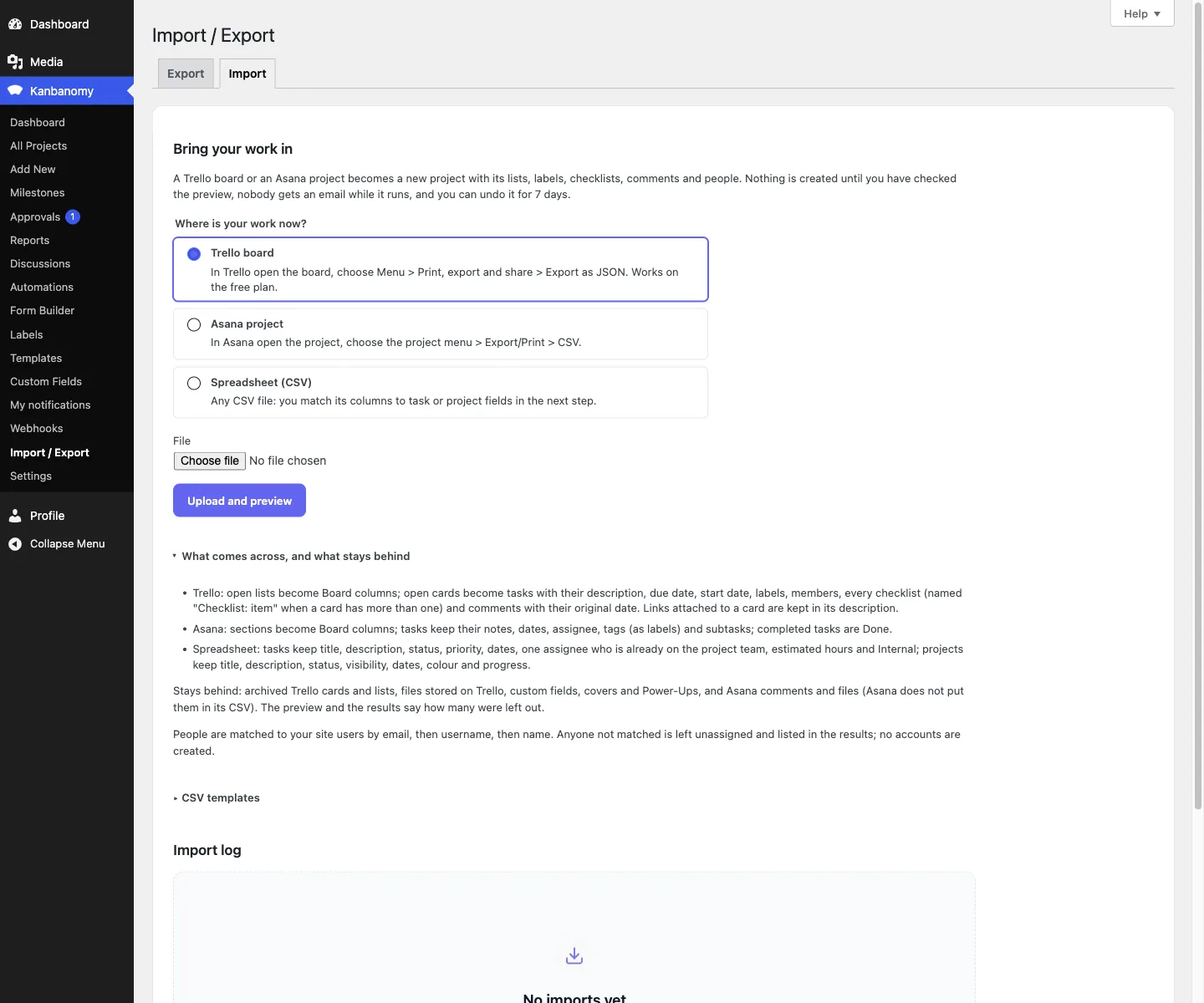
If you already track work somewhere else, you do not start from zero. Kanbanomy imports a Trello board from its JSON export and an Asana project from its CSV export. Any other tool, including ClickUp, Teamwork, monday.com and Jira, comes in through a spreadsheet with column mapping.
Every import shows a preview first. Nobody is emailed while it runs, and you can undo it for 7 days. People are matched to site users by email, then username, then name, so add your team to the site before you import. Milestones and time entries never come across, so recreate those by hand. For a handful of active projects the move is an afternoon. For hundreds of projects with deep history, plan the time, or start fresh and keep the old tool as an archive.
There are guides for moving from Trello, moving from Asana and moving from a CSV file.
What do you need to run it?
The requirements are short.
| Requirement | Detail |
|---|---|
| WordPress | 7.0 or newer |
| PHP | 8.1 to 8.5 |
| Database | 25 tables created by the plugin |
| Build step | None. Download, install, activate |
| Scheduled work | Action Scheduler when present, WP-Cron otherwise |
Two details matter in practice. First, a backup that only exports posts and pages will not capture project data, because Kanbanomy keeps everything in its own tables. Confirm your backup covers the full database. Second, recurring tasks and milestone reminders depend on scheduled jobs. A very quiet site with no real system cron can run them late.
Email delivery is your site’s job. Install an SMTP plugin so invitations and notifications arrive.
Will it stay fast on a big site?
Kanbanomy 1.3.0 was tested on a seeded site with 10,000 users, 2,007 projects and 100,023 tasks. The numbers below come from that run, on a developer laptop with no object cache.
| Page | Server time |
|---|---|
| Hub for a member of 300 projects | Under 210 ms |
| A project with 5,000 tasks (Overview, Tasks, Board, Gantt) | 80 to 90 ms |
| Member search across 10,000 users | 82 ms |
Every list pages on the server, so a screen costs about the same on a 45-task project as on a 5,000-task one. Your hosting still decides the absolute numbers, and a very large workspace on shared hosting will feel like shared hosting. The scripts and styles load only on pages that use the plugin.
Which themes has it been checked on?
Kanbanomy inherits your theme colours and ships dark mode and right-to-left support. It was checked on BuddyX, BuddyX Pro, Reign and Twenty Twenty-Five, in light and dark and in right-to-left. Any well-built theme should work, but those four are the ones tested.
The team and clients work on the front end of your site. Team members open a Hub at /hub/ and never need wp-admin. Clients are sent to the Hub if they open wp-admin.
How is Kanbanomy priced?
You pay per site. There is no per-user fee and no per-project fee, so adding a teammate or a client costs nothing extra. Pay once if you take a lifetime licence.
| Licence | Sites | Yearly | Lifetime |
|---|---|---|---|
| Personal | 1 | $69 a year | $199 once |
| Developer | 5 | $99 a year | $299 once |
| Agency | Unlimited | $399 a year | Not offered |
Every feature is in every licence, so the tiers differ only by how many sites you run. A 30-day refund applies to every purchase. The licence turns on automatic updates and support, and if it lapses, the plugin and all its features keep working. See the pricing page for current terms.
Yearly or lifetime is mostly a question of how long you will use it. A lifetime licence is paid once. A yearly one renews to keep updates and support flowing.
What are the honest limits?
You should know these before you install.
- No invoicing, deal pipeline or ticketing. It manages projects.
- No native mobile app. The interface is responsive and works in a phone browser.
- Clients cannot request timeline changes. They comment and approve.
- No bundled translations. It is translation-ready with a .pot file, so you or a translator supply the .po file.
- Imports bring in Trello boards, Asana projects and CSV files, and skip milestones and time entries.
- Import and Export is not a backup. Keep real database backups.
None of these is hidden in the docs. The evaluation guide lists them, and so does this page.
Who should not use Kanbanomy?
Skip it if any of these describe you.
- You want someone else to run the servers, the backups and the uptime. Self-hosting means you own those.
- You need invoices, quotes or a sales pipeline inside the same tool.
- Your team works mostly from a native phone app.
- Your clients must be able to drag the timeline to propose new dates.
- You do not use WordPress and have no plan to.
If you need hosted software with a vendor-run service level, a hosted tool is the better choice. Kanbanomy is for teams who want to own the stack.
How can you evaluate it in ten minutes?
The fastest test is the guided demo, a client-services studio with real projects. You can sign in as a team member or as a client and compare the two views.
- Open the demo and sign in as a team member. Look at the Hub and note how many projects are late.
- Open a project and switch between the task list, Board, Gantt and calendar. Move one card and watch the others.
- Open a task and read the panel. Check the time section, the checklist and the comments.
- Look for the Internal badge on a task. This is how you keep work away from clients.
- Sign in as a client and open the same project. Confirm the Internal task is missing and the budget is hidden.
- Find the approval. A task asking for client approval shows Your approval is needed.
- Open Reports and read estimated against logged hours.
- Read the limits in the evaluation guide and decide whether any is a deal breaker.
If you want your own copy, you can launch a sandbox from the demo page, or load the sample data on a staging site and remove it in one click. Try the demo before you read any more.
The evaluation guide in the docs covers the same ground in more detail, and the getting started guides walk through install, a first project, your team, a client and an import.
What to decide next
Score your shortlist against the ten-line checklist. If Kanbanomy answers the lines that matter to you, get Kanbanomy for one site and try it on staging. If you run client projects, read how the client portal works. If you run an agency, read how the agency workflow fits together. If hosting is your main concern, read the self-hosted guide. Whatever you pick, test it on a staging copy with a few real projects first, and invite one teammate and one client before you commit your whole team.
Try it for this topic.
Open the guided demo, a client-services studio with real projects, or launch your own sandbox copy on InstaWP. Here is what to click:
- Open a project and move a card on the Board, then check the Gantt and the calendar.
- Open a task marked Internal, then sign in as the client and look for it.
- Find a task that is Waiting for client and approve it as the client.
Questions before you install
What is the best WordPress project management plugin?
It depends on what you manage. If you run client work and want boards, a Gantt timeline, time tracking and a client portal in one plugin, Kanbanomy covers that. If you only need a shared to-do list, a lighter plugin is enough. Use the checklist on this page to decide.
Do I need a separate server to run a project management plugin?
Not with Kanbanomy. It runs inside your existing WordPress site on WordPress 7.0 or newer and PHP 8.1 to 8.5. There is no build step, so you upload the ZIP, activate it and run the setup wizard. It creates 25 database tables in your own database.
How much does Kanbanomy cost?
Personal is $69 a year or $199 once for one site. Developer is $99 a year or $299 once for five sites. Agency is $399 a year for unlimited sites, with no lifetime option. Every feature is in every licence, with no per-user fee and no per-project fee.
What happens to my projects if I stop renewing?
Nothing breaks. Every feature works without a licence key, and a lapsed licence keeps working forever. You stop receiving updates and support. Deleting the plugin also keeps your data unless you opt in to destroying it.
Run the work. Share the result.
Self-hosted project management with no per-user fee, no per-project fee and a one-time licence. Try the demo first, then pick the licence that fits your sites.