
How to import tasks from a CSV spreadsheet into WordPress project management
Create your projects in Kanbanomy, then open Import, choose Spreadsheet (CSV), upload the file and map each column to a field. Title is the only required field, a preview comes first, and you can undo for 7 days.
To import tasks from a CSV file, create the project in Kanbanomy first, add your team to it, then go to Kanbanomy > Import / Export > Import, choose Spreadsheet (CSV) and upload the file. You map each column to a field, check a preview and click Import Tasks. Title is the only required field.
This route works for ClickUp, Teamwork, monday.com, Jira or a plain spreadsheet. Kanbanomy has no direct importer for those tools, so CSV is the way in. There is no per-user fee and no per-project fee, and your data lives in your own WordPress database. This guide covers the file layout, every field, the steps and the checks.
Which tools can I move with a CSV?
Any tool that can export tasks to CSV works. The common ones are ClickUp, Teamwork, monday.com and Jira, plus any spreadsheet you keep by hand.
Trello and Asana are different. Kanbanomy has direct importers for them that bring more across, such as checklists, comments and sections. If your work lives in either, use the Trello guide or the Asana guide instead.
The CSV route carries task and project fields. It does not carry labels, checklists, comments or files. That is the trade for being able to bring work from almost anywhere.
How do I get a CSV out of my old tool?
Each tool does it a little differently, so look in its own help. In general terms, the steps are the same everywhere.
- ClickUp. Export the tasks to CSV from the tool’s export menu.
- Teamwork. Export the tasks to CSV from the tool’s export menu.
- monday.com. Export the board to a spreadsheet from the tool’s export menu.
- Jira. Export the issues to CSV from the tool’s export menu.
- A spreadsheet. Save it as a CSV file from your spreadsheet program.
Open the file before you import it. Check that the first row holds column headings, that dates look sensible and that there are no stray blank rows. A file can be up to 20 MB. Split larger files by project.
If your export is from Asana, Trello or Monday.com, the upload form offers a Migration preset for those formats, which maps the columns for you.
What do I do before I import?
Use this checklist. The CSV route needs more preparation than a direct importer because the project must already exist.
- Create the projects first. Tasks go into a project that already exists. See the first project guide for how.
- Add your team to the project. The assignee in each row must already be on the project team.
- Add them to the site first. Matching uses email, then username, then display name against site users.
- Check your role. Administrators and Project Managers can import.
- Check the basics. You need WordPress 7.0 or newer and PHP 8.1 to 8.5.
- Clean the file. One task per row, one assignee per row, dates in one format.
- Mark private work. Add an Internal column set to yes for tasks clients should not see.
- Confirm a backup. It should cover the full database, since Kanbanomy adds 25 tables.
What does a good spreadsheet look like?
A small, clean layout is easier to map and easier to check. Here is an example for a website redesign.
| Title | Description | Status | Priority | Start Date | Due Date | Assignee | Estimated Hours | Internal |
|---|---|---|---|---|---|---|---|---|
| Audit current site | List every page and plugin | Done | High | 2026-11-02 | 2026-11-06 | sam@example.com | 8 | no |
| Write new homepage copy | First draft for review | In Progress | High | 2026-11-09 | 2026-11-13 | priya@example.com | 6 | no |
| Check hosting costs | Compare three hosts | To Do | Medium | 2026-11-09 | 2026-11-11 | sam@example.com | 2 | yes |
| Client review call | Walk through the draft | To Do | Medium | 2026-11-16 | 2026-11-16 | priya@example.com | 1 | no |
A few habits help. Use one date format throughout, and prefer 2026-11-02, which is always read the same way. Put one email address in each Assignee cell. Keep Status and Priority to words your team actually uses. Add a row only when it is a task, because a row with no title is skipped.
Extra columns are fine. You map the ones you want and choose Skip for the rest.
How do I import the CSV, step by step?
- In WordPress, open Kanbanomy > Import / Export and choose the Import tab.
- Under Where is your work now? choose Spreadsheet (CSV).
- Choose the project the tasks should go into.
- Choose the file, and pick a Migration preset if your export came from Asana, Trello or Monday.com.
- Click Upload and preview.
- Map the columns, check the sample rows and click Import Tasks.
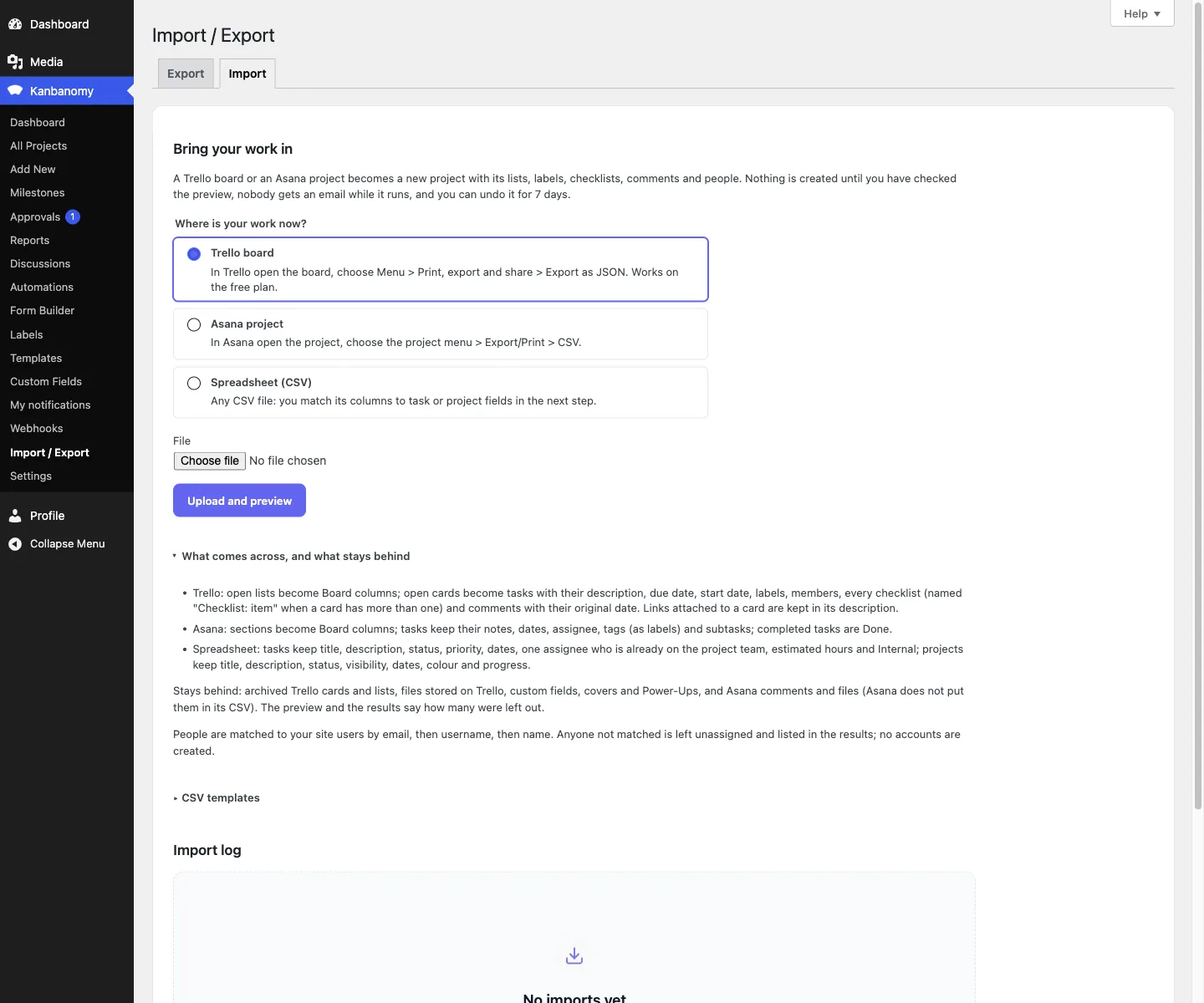
The import runs in the background with a progress bar. Nobody receives an email while it runs, and you get one notification when it finishes. The result lists what was created, what was skipped and any value to check.
How does column mapping work?
Kanbanomy shows each column of your file, a drop-down for the field it fills, and the first rows as a sample. Title is the only required field. Choose Skip to ignore a column.
| Field | What Kanbanomy reads | If it cannot read it |
|---|---|---|
| Title | Any text. Required. | The row is skipped |
| Description | Plain text | Left empty |
| Status | To Do, In Progress, In Review, Done, plus words like Backlog, Not started, Doing, Working on it, Stuck, Blocked, Needs review, QA, Complete and Closed | The task becomes To Do |
| Priority | Low, Medium, High, Critical, plus Urgent, Highest, Blocker, Normal, Major, Lowest and Minor | The task becomes Medium |
| Start Date, Due Date | 2026-11-27, 27/11/2026, 27.11.2026 and written dates such as Nov 27, 2026 | The date is left empty |
| Assignee | One person by email, username or display name, already on the team | No assignee |
| Estimated hours | A number | Left empty |
| Internal | yes, true, 1 or internal | Visible to clients |
| Completed | A completed task arrives as Done | Check the Values to check list |
Dates such as 05/12/2026 can mean 5 December or 12 May. Kanbanomy follows your site’s date format under Settings > General, and the mapping screen tells you which way it reads. A date with dots is always read day first.
How do I import projects instead of tasks?
You can also import whole projects from a CSV. Do this first if you are moving many projects, and then import tasks into them.
A projects file can carry these fields.
- Title
- Description
- Status, such as Approved, In Progress or Completed
- Visibility, one of Public, Private or Members Only
- Start and end dates
- Colour
- Progress
Status you cannot map becomes In Progress. Visibility you cannot map uses your site’s default under Kanbanomy > Settings. Click Import Projects instead of Import Tasks.
A sensible order is projects first, then tasks into each one. It keeps each file small, and each undo exact.
What is the one-assignee rule?
A spreadsheet row holds one assignee. That person must already be on the project’s team, matched by email, username or display name.
If a name does not match, the task is imported without an assignee. It is not lost. Add more people to the task by hand afterwards, since Kanbanomy tasks support several assignees.
If your old tool let a task have many owners, pick the main person for the CSV. Or split the work into subtasks in the source if that suits the team.
What does the preview and the result screen show?
For a CSV, the preview is the mapping screen. You see your columns, the fields they fill and sample rows. Check the date line that says which way slash dates are read.
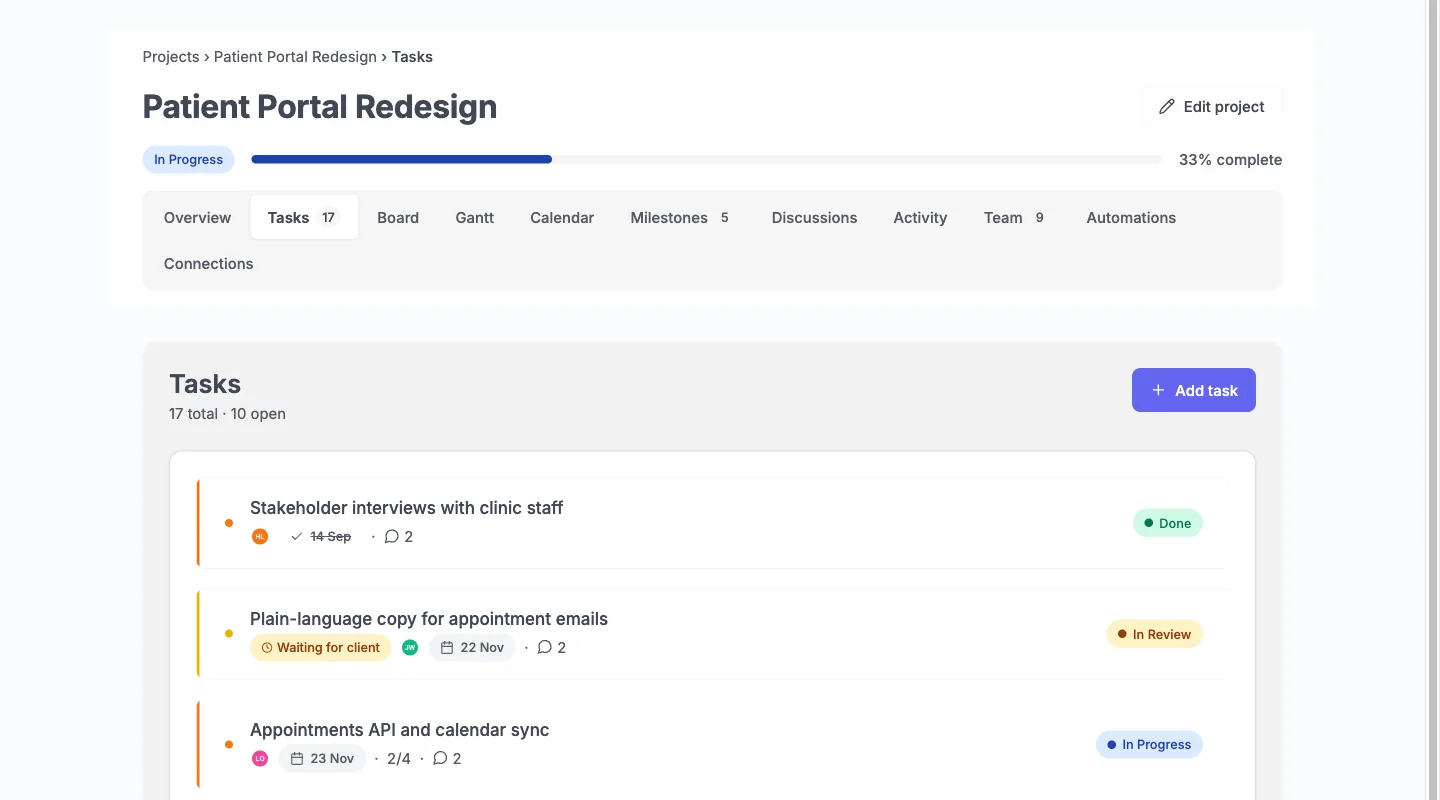
After the import, the result lists what was created, rows that could not be read (an empty row or a row with no title), and Values to check. A value to check means the row was imported, but one value was not recognised. The note names the row, the value and what Kanbanomy used. For instance, the priority “Whenever” was not recognised, and the task was imported as Medium.
Open the project to see the result.
How do I check the import is right?
Spend ten minutes on a quick audit before you trust the result. Do it on the first small file, and again on each big one.
- Count the rows. Compare the number of tasks created with the number of rows in your file. The results screen lists any row that was skipped.
- Read the Values to check list. Each line is a decision Kanbanomy made for you, such as a status that became To Do.
- Open three tasks. Pick one with a long description, one with a date range and one marked Internal. Compare each with the source.
- Look at the Board. Tasks sit in the column for their status. Move one to confirm the columns work as you expect.
- Open the Gantt and the calendar. Tasks with dates should appear on both. Tasks with no dates will not.
- Check the Internal flag as a client. Share the project with a test client and look at the Hub in a private window. Tasks marked Internal must not appear.
If something is off, fix the file and run the import again after an undo. It is quicker than editing many tasks by hand.
What if my old tool has fields Kanbanomy does not map?
Most tools export more columns than the CSV importer can use. Kanbanomy reads task and project fields only, so the rest stay in the file and nowhere else.
You have a few options.
- Fold it into the description. Add a spreadsheet column that joins the extra details into one text cell, and map that to Description.
- Use the title. Put a short tag in the title, such as a client name, if you want to search for it later.
- Use a label by hand. Labels are not carried by a CSV, but you can add them to tasks after the import and filter by them. Saved views keep the filter.
- Use custom fields. Kanbanomy supports per-project custom fields, which the site owner defines. They are set up separately from the import.
- Leave it out. Some fields describe the old tool’s workflow and have no use in the new one.
Can I undo a CSV import?
Yes, for 7 days. Open the import from the Import log, type UNDO and click Undo import.
Undo removes exactly what that import created. Work added by hand since stays, and so does the project if it holds any. If imported tasks were changed after the import, the undo box says how many before you confirm.
What does it cost to run?
There is no per-user fee and no per-project fee. Every feature is in every licence, and pricing is per site.
| Licence | Yearly | Pay once (lifetime) | Sites |
|---|---|---|---|
| Personal | $69 | $199 | 1 |
| Developer | $99 | $299 | 5 |
| Agency | $399 | Not offered | Unlimited |
Personal and Developer can be bought once. Agency is yearly. If a licence lapses, the plugin and every feature keep working, and updates and support stop. A 30-day refund is available. See pricing. For the tool you leave, check its current pricing page.
Where does the data live?
In your own WordPress database, in 25 tables Kanbanomy creates. The uploaded file sits in a private folder under wp-content/uploads/kanbanomy-private/ until the import is done, and then it is deleted. On Apache the folder is protected automatically. On nginx, add a deny rule for it.
The only outbound request the plugin makes is the licence check, which sends the key and site URL and never your content. See self-hosted project management for what owning the data means in practice.
What should the first week look like?
- Day 1. Create one project and import a small file of about twenty rows. Read the results.
- Day 2. Fix mapping problems and undo if needed. Import again.
- Day 3. Add labels, checklists and comments by hand where they matter, since a CSV does not carry them. Recreate milestones.
- Day 4. Invite two teammates and look at the Board, the Gantt and the calendar together.
- Day 5. Import the rest of the projects, one file at a time.
- Day 6. Share one project with a client as a Viewer. Look at the Hub in a private window.
- Day 7. Review. Keep the old tool read-only until you trust the new one.
What if something goes wrong?
- “Map one column to Title before importing.” Set one column to Title (required).
- A task has no assignee. The person is not on the project team, or the name did not match. Add them to the site and the team, then undo and import again.
- A status became To Do. Kanbanomy did not recognise the word. Change the word in the file, or move the card on the Board.
- A date is empty. The format could not be read. Use 2026-11-27.
- The file is too large. Split it by project, or ask your host to raise the limit.
- Wrong project. Undo within 7 days.
What are the limits?
- Labels, checklists, comments and files are not carried.
- No import brings milestones or time entries.
- One assignee per row.
- There is no direct importer for ClickUp, Teamwork, monday.com or Jira.
- There is no invoicing, no native mobile app and no bundled translations.
- Clients cannot request timeline changes.
- Import is not a backup. Use a real database backup.
Who should not switch?
Stay where you are if your work depends on labels, checklists and comments that you cannot recreate. Stay if you want a vendor to host and back up everything, since Kanbanomy is self-hosted. Stay if you need a native phone app or invoicing.
If you are unsure, try the demo and import twenty rows. Read the monday.com alternative page for a longer comparison. Undo is there for 7 days.
Try it for this topic.
Open the guided demo, a client-services studio with real projects, or launch your own sandbox copy on InstaWP. Here is what to click:
- Open Kanbanomy, then Import, and look at the three sources.
- Open the import screen’s list of what comes across and what stays behind.
- Open a project in the demo and check the Board columns, labels and checklists an import would create.
Questions before you install
Which tools can I move over with a CSV?
Any tool that can export tasks to CSV, including ClickUp, Teamwork, monday.com and Jira, or a plain spreadsheet. Kanbanomy has no direct importer for those four, so CSV is the route. Trello and Asana have their own importers.
Can a task have more than one assignee in the CSV?
No. A spreadsheet row carries one assignee, and that person must already be on the project team by email, username or display name. Anyone else leaves the task unassigned. You can add more assignees by hand after the import.
What does the CSV import not carry?
Labels, checklists, comments and files are not carried, and no import brings milestones or time entries. A spreadsheet brings task and project fields only. Recreate the rest by hand, or use the Trello importer if your source is a Trello board.
How do I fix a bad import?
Open the import from the Import log, type UNDO and click Undo import within 7 days. Undo removes what the import created, and work added by hand since stays. Fix the spreadsheet or the mapping and import again.
Run the work. Share the result.
Self-hosted project management with no per-user fee, no per-project fee and a one-time licence. Try the demo first, then pick the licence that fits your sites.