
A ClickUp alternative that does one job well.
If you wanted projects, deadlines, hours and clients and got an everything app, Kanbanomy is the narrower tool, on your own WordPress.
Kanbanomy is a ClickUp alternative for teams that wanted projects, deadlines, hours and clients and ended up configuring an everything app. It is the narrower tool. It runs inside your own WordPress site, manages projects and nothing else, and ships with the defaults already set. There is no per-user fee and no per-project fee, and a lifetime licence is available for Personal and Developer.
You export your tasks from ClickUp as a CSV file and upload it. Kanbanomy shows each column next to a drop-down and a sample of rows, you map them to task fields, and a preview appears before anything is created. There is no direct ClickUp importer, so the spreadsheet is the route. This page explains what that import brings, what to leave in other tools, and who should not switch.
Why do teams leave an everything app?
The pattern is familiar. A tool promises one place for tasks, docs, goals, whiteboards and chat. The team spends the first month setting up spaces, lists, custom fields and views. Six months later, only two or three people understand the setup, and every new project starts with a conversation about how to structure it.
The cost is attention. Each option is reasonable on its own, and together they become a job. A site owner who wanted to see what is due this week ends up maintaining a workspace.
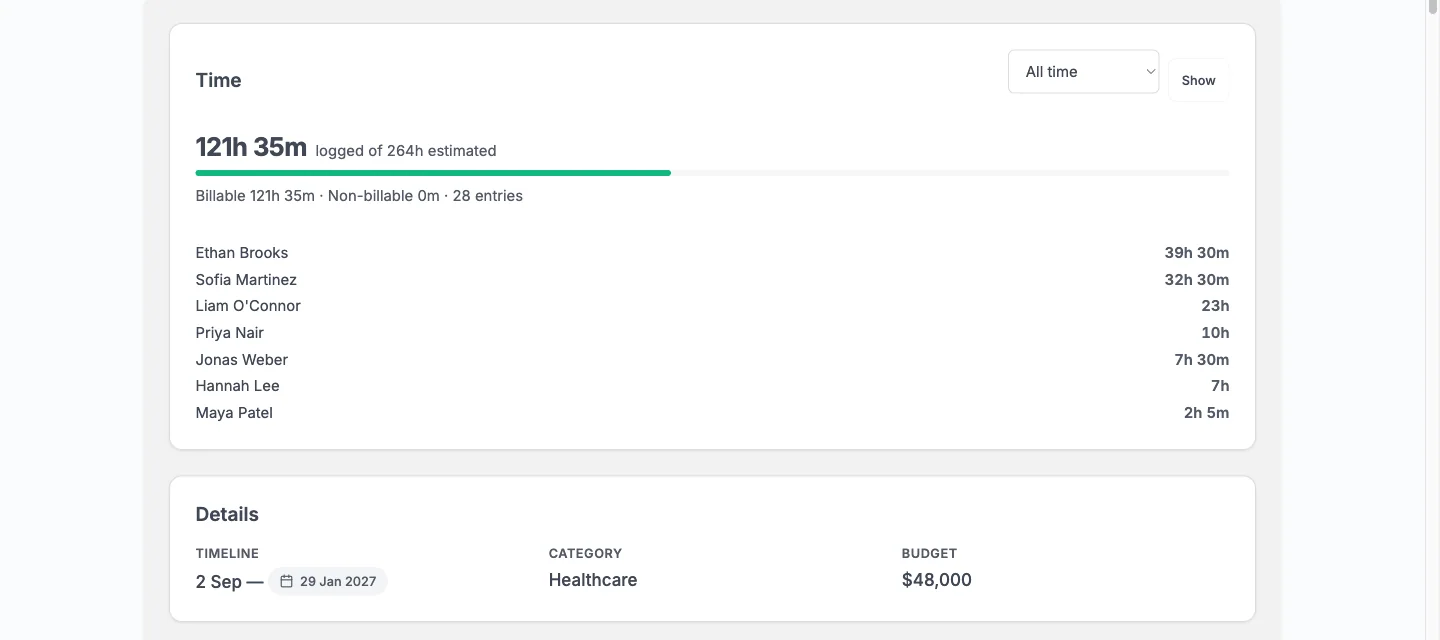
A narrower tool trades breadth for a shorter setup. Kanbanomy has a Board, a task list, a Gantt timeline and a calendar, and they all show the same tasks. It has time tracking, approvals, intake forms, reports and a client portal. It does not have documents, whiteboards or chat, and that is by design.
If you read that list and thought, that is all I use, you are the person this page is for.
What does Kanbanomy cover, and what does it leave out?
Think of it as the project layer for a WordPress site.
| Covered | Left to other tools |
|---|---|
| Projects with tasks, subtasks, dependencies and checklists | Documents and wikis |
| Board, task list, Gantt and calendar | Whiteboards |
| Time tracking, billable or not, against estimates | Chat |
| Client portal with approvals | Invoicing and billing |
| Intake forms and an approvals inbox | Deal pipeline and ticketing |
| Reports, Slack, webhooks and REST API | A native mobile app |
The right-hand column is the honest list. Kanbanomy has no invoicing, no deal pipeline, no ticketing and no native mobile app. The interface is responsive and works in a phone browser.
Because the plugin lives on your WordPress site, a few things come for free. Your team and clients are the site’s users. Your theme sets the colours, and it has been checked with BuddyX, BuddyX Pro, Reign and Twenty Twenty-Five in light and dark mode and right to left. Members work at the front-end Hub and never need wp-admin.
How does the ClickUp CSV import work with column mapping?
The import is two steps, projects and then tasks. You create or import the project first, then import tasks into it.
On the upload form you choose Spreadsheet (CSV) and pick your file. Kanbanomy then lists every column in your file, with a drop-down that says which Kanbanomy field it fills and the first rows as a sample. Title is the only required field. Choose Skip for any column you do not want.
| Field | What Kanbanomy reads |
|---|---|
| Title | Required |
| Description | Plain text |
| Status | To Do, In Progress, In Review, Done, plus common words from other tools |
| Priority | Low, Medium, High, Critical, plus words such as Urgent, Normal and Minor |
| Start and due dates | Several formats, including 2026-11-27, 27/11/2026 and written dates |
| Assignee | One person by email, username or display name, already on the project team |
| Estimated hours | A number |
| Internal | yes, true, 1 or internal |
A task marked completed arrives as Done. Anything the importer cannot read is listed under Values to check with the row, the value and what Kanbanomy used instead. For example, a priority of Whenever is imported as Medium.
Dates need one decision. A date such as 05/12/2026 could be 5 December or 12 May. Kanbanomy follows the date format in your site’s Settings, General, and the mapping screen tells you which way it reads. A number over 12 settles it, and 2026-12-05 is always safe.
What does a spreadsheet import leave behind?
A task CSV brings no labels, checklists, comments or files. That is the largest loss from ClickUp, because teams that use an everything app often put a lot into those. It also does not bring custom fields, subtasks as a nested structure, milestones or time entries.
Plan for each in turn.
- Labels. Recreate the handful you use.
- Checklists. Rebuild them on the tasks that are still open. Closed tasks do not need them.
- Comments. Keep the ClickUp workspace readable for a while and copy over any comment that records a decision.
- Files. Download what you need and attach it to the new task. Attachments are WordPress media library items.
- Milestones. Create them by hand. No import brings them.
- Time entries. No import brings them. Keep the old totals in your export and start new hours in Kanbanomy.
If your export has one big flat file with a column for the list or folder, split it into one CSV per project before you import, so each project can be previewed and undone on its own.
How does the move from ClickUp work, step by step?
- Install and activate Kanbanomy. Download, install, activate. There is no composer or npm step.
- Add your team as users. The assignee column only matches people who are already on the site and on the project team.
- Create the destination project. Go to Kanbanomy and create the project that will hold the tasks, then add the team to it. For several projects at once, use a projects CSV with title, description, status, visibility, dates, colour and progress.
- Export from ClickUp. Export your tasks to CSV from the tool.
- Upload. Go to Kanbanomy, then Import / Export, then Import. Choose Spreadsheet (CSV), pick the file and click Upload and preview. The file can be up to 20 MB.
- Map the columns. Set Title, and map the rest. Skip what you do not need.
- Import and read the results. It runs in the background with a progress bar and sends no emails while it runs. The results list rows that could not be read and values to check.
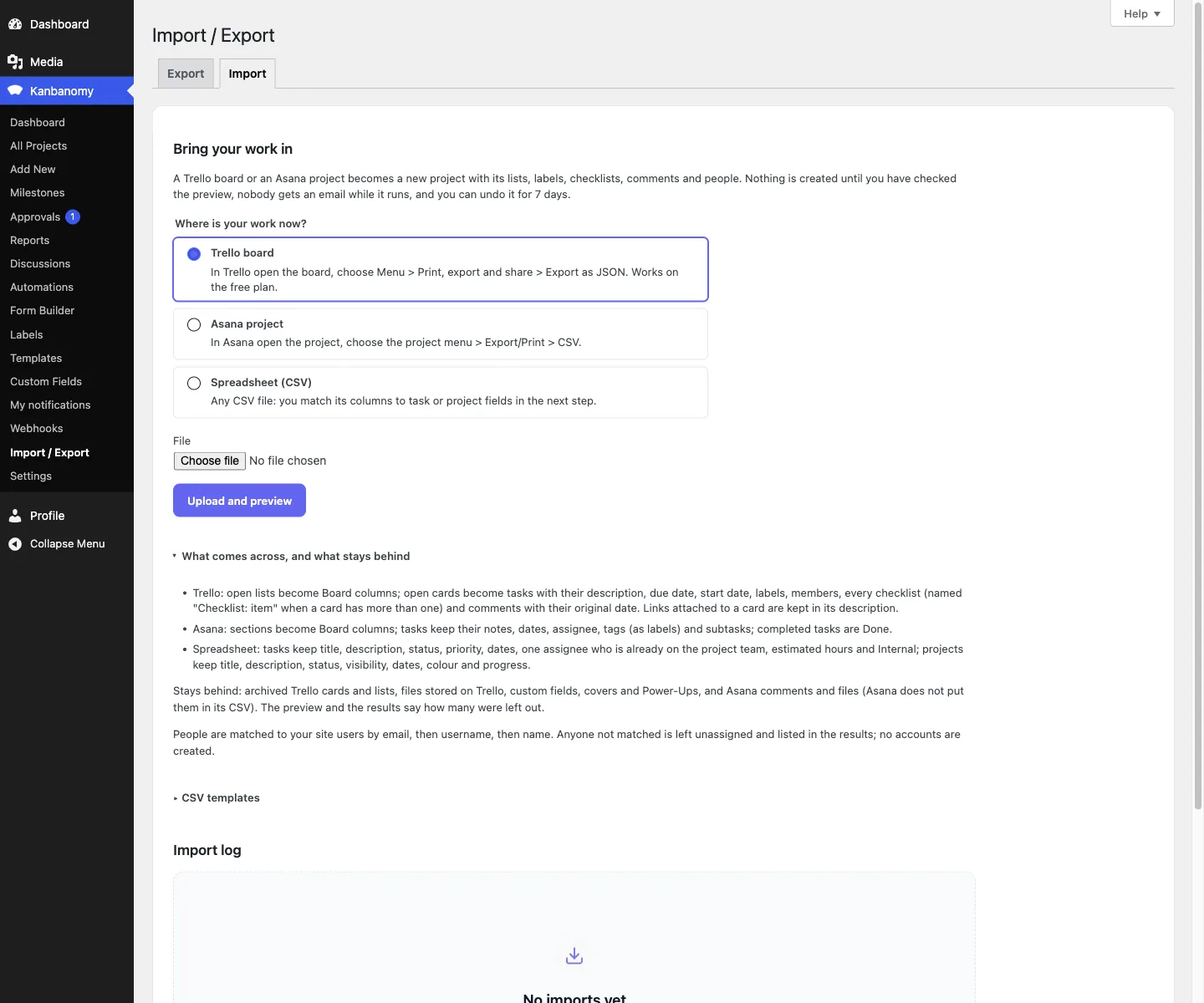
If the mapping was wrong, open the import in the Import log, type UNDO and confirm. Undo is available for 7 days and removes exactly what that import created, so a bad mapping costs you a few minutes.
What should you leave in other tools?
Resist the urge to rebuild the whole workspace. Move the project record and leave the rest where it belongs.
- Docs. Keep them in whatever you use for writing, such as your wiki, a shared drive or the editor in WordPress. Link to a doc from a task description when a task needs it.
- Whiteboards. Keep them in a whiteboard tool and paste the link into the project.
- Chat. Keep it in Slack or whatever your team already uses. Kanbanomy can post to Slack through an incoming webhook, so task events reach the channel.
- Invoices. Keep your billing tool. Export logged time to CSV and use it as the source for the invoice.
- Goals and company-wide dashboards. Kanbanomy has a portfolio overview, per-project rollups and workload by member, which is project reporting. If you track company objectives, keep that elsewhere.
This is also where the narrower tool pays off. Fewer places to put things means fewer decisions about where a thing lives.
What setup can you skip?
Most of the configuration you did in ClickUp has no equivalent, because Kanbanomy sets sensible defaults.
New projects default to members only, so they are not served to anonymous visitors and not indexed. There are three capabilities, and the role matrix is editable under Settings, Access. Every feature is on by default, and the 15 toggles let you switch off the ones you do not want, either site-wide or per project.
The places you will touch in the first week are small.
- The billable default for time, on each project’s Settings tab.
- The Client role and the Internal flag, for anything a client should not see.
- Notification settings. Each event has a toggle that controls both the bell notice and the email.
- Automation rules, if you want them. A rule has a trigger, conditions and an action, with up to 20 rules per project.
What does it cost to run Kanbanomy instead of ClickUp?
The licence is per site. Every feature is in every licence, and there is no per-user fee and no per-member fee.
| Licence | Yearly | Pay once | Sites |
|---|---|---|---|
| Personal | $69 | $199 | 1 |
| Developer | $99 | $299 | 5 |
| Agency | $399 | Not offered | Unlimited |
Lifetime is available for Personal and Developer. Agency is yearly. There is a 30 day refund. If a yearly licence lapses, the plugin and every feature keep working and updates and support stop.
Check ClickUp’s pricing page for what you pay today, since plans and limits change. The comparison to make is cost per year for your actual headcount, including the people who only look.
Where does the data live?
In your own WordPress database, in 25 tables that Kanbanomy creates. Project data goes nowhere else. The only outbound request is the licence check, which sends your key and site URL and never content. The optional AI assistant is off by default and, when on, uses the AI provider you set in WordPress and sends only what the asking person can see.
You own the hosting, so you own backups. A backup of posts and pages alone will miss Kanbanomy’s tables, so confirm yours covers the whole database. Import and Export is not a backup, and Import takes projects and tasks only.
What should you check before you move from ClickUp?
- Pick one project. Choose a live project with a clear end date.
- Open the CSV. Look at the status and priority values, so you know what will be recognised.
- Count the lost items. Note how many labels, checklists and files matter for open tasks.
- Add users. Every assignee needs a WordPress account on the project team.
- Choose the destination project. Create it first and add the team.
- Plan the leftover tools. Decide where docs, whiteboards and chat will live.
- Test mail and cron. Send a test email, and make sure scheduled jobs run, since recurring tasks and milestone reminders depend on them.
- Back up. Confirm a full database backup exists.
Where does ClickUp still win?
ClickUp is hosted, so you do not manage a server, a database or updates. It also covers far more ground in one login. If your team really does use documents, whiteboards, chat, goals and tasks in one workspace and likes it that way, a narrower tool will feel like a step back.
It has a native mobile app and Kanbanomy does not. And because ClickUp has no dependency on a WordPress site, you can use it without any web hosting at all.
Who should not switch from ClickUp?
This section is a decision, so here it is as a short table.
| Stay on ClickUp if | Switch to Kanbanomy if |
|---|---|
| You use docs, whiteboards and chat inside the tool every day | You mostly need tasks, schedule and hours |
| Your team has no WordPress site | You already run WordPress |
| You need a native mobile app | A responsive web app is enough |
| You need invoicing or a pipeline in the same tool | You are happy to keep billing elsewhere |
| Clients never see your work | Clients need a clean view and approvals |
| Clients must request timeline changes | Clients comment and approve |
If you land mostly on the left, stay.
What should you do in the first week after moving?
- Day one. Open the imported project and check status and priority on a dozen tasks against ClickUp. If they look off, undo and remap.
- Day two. Add the labels, checklists and files that matter for open work, and create the milestones.
- Day three. Decide the Internal flag for each task and add one client as a Viewer. Open the project as that client.
- Day four. Turn off the features you will not use. Fewer tabs make the project easier to read.
- Day five. Log real hours with the timer and compare them to the estimate on the project Time card.
Keep the ClickUp workspace readable for a month. Then import the next project. The Kanbanomy docs cover the importer in full, and the spreadsheet migration page shows the same path with screens.
Who moves from ClickUp.
- Teams who spend more time configuring a workspace than doing the work.
- Agencies who want a clean client view, not a shared workspace they have to lock down.
- Owners who want a flat licence instead of paying per member.
ClickUp and Kanbanomy side by side.
| What matters | ClickUp | Kanbanomy |
|---|---|---|
| Where the data lives | On ClickUp’s servers | In your own WordPress database |
| How you pay as you grow | Per member, per month | One licence per site, no seat meter |
| Adding a client | Usually a seat, a guest slot or an upgrade | A Client role, as many as you need |
| Keeping internal work from clients | Depends on the plan and how you set it up | Internal tasks and team-only threads are built in |
| If you stop paying | Access ends | Everything keeps working, forever |
What moves across from ClickUp.
Tasks come in by CSV
Export tasks to a spreadsheet and map the columns to title, description, status, priority, dates, assignee and estimated hours.
Projects first, then tasks
Import projects from one file, then tasks into them from another, with a preview each time.
Undo for 7 days
Every import can be undone for a week, so a bad column mapping costs you nothing.
How to move.
- In ClickUp, export your tasks to CSV.
- In WordPress, open Kanbanomy, then Import, choose Spreadsheet (CSV) and upload the file.
- Map your columns to task fields, check the preview and start the import.
Check this first.
- CSV tasks bring no labels, checklists, comments or files, so plan to recreate the ones that matter.
- Docs, whiteboards and chat live in other tools. Kanbanomy manages projects and nothing else.
- Milestones and time entries are not part of any import.
Try it for this topic.
Open the guided demo, a client-services studio with real projects, or launch your own sandbox copy on InstaWP. Here is what to click:
- Open Import in the demo and look at what comes across and what stays behind.
- Open a project and move a card on the Board, then check the Gantt.
- Sign in as the client and compare what they see with what the manager sees.
ClickUp to Kanbanomy: questions
Is there a ClickUp preset in the CSV importer?
No. The importer has presets for Asana, Trello and Monday.com exports, and none for ClickUp. You map the columns yourself on a screen that shows each column of your file next to the first rows. Title is the only required field.
What happens to my custom ClickUp statuses?
Kanbanomy has four task statuses, To Do, In Progress, In Review and Done, and it reads common words from other tools such as Backlog, Doing, Blocked and Complete. A status it cannot read becomes To Do and is listed under Values to check.
Can a task have several assignees on import?
A spreadsheet row takes one assignee, who must already be on the project team. Kanbanomy tasks can have several assignees, so add the others by hand after the import.
Can I switch off features I do not use?
Yes. There are 15 feature toggles, including Board, Gantt, calendar, time tracking, subtasks, dependencies, recurring tasks, custom fields, attachments, forms, webhooks, activity log, labels, comments and reports. They are all on by default and none is an upsell.
Does Kanbanomy import from ClickUp?
Through a spreadsheet. Export tasks to CSV, upload the file and map the columns. There is no direct ClickUp importer, only Trello, Asana and CSV.
Is Kanbanomy as full-featured as ClickUp?
No, on purpose. It manages projects: boards, Gantt, calendar, time, approvals and a client portal. It has no docs, whiteboards, invoicing or native mobile app.
Does it cost per member?
No. The licence is per site, and your team and clients are users of the site you already host.
Other comparisons.
Trello alternative, Asana alternative, Teamwork alternative, Monday alternative. Or read about the client portal and self-hosted project management.
Try it with your own ClickUp board.
Self-hosted project management with no per-user fee, no per-project fee and a one-time licence. Try the demo first, then pick the licence that fits your sites.