
A Trello alternative that runs on your own WordPress.
Keep the board you like. Add the Gantt, the time tracking and the client portal Trello leaves to add-ons, and stop paying for every seat.
Kanbanomy is a Trello alternative that runs inside your own WordPress site. You keep the board you like, with columns, cards, checklists and comments, and you add a Gantt timeline, hour tracking, approvals and a client portal in the same plugin. There is no per-user fee and no per-project fee. You pay once per site, and a lifetime licence is available for Personal and Developer.
You export a board from Trello as JSON, upload it, check a preview and import it into a new project. Nothing is created until you confirm, and you can undo the import for 7 days. This page is for agencies and small teams who invite clients onto boards and keep running into the edge of what a board can show.
Where does a Trello board stop working for client projects?
A board answers one question well. What is in progress, and what is next? Client work asks more than that. When is the launch, and what slips if the design review runs late? How many hours have we spent against the estimate? Has the client signed off on the homepage?
Teams usually patch these gaps with a spreadsheet for the schedule, a timer app for the hours and email for approvals. The board stays accurate, and the other places drift away from it.
The second edge is the client. Hosted tools tend to treat a new collaborator as something to count, so inviting a client means a seat, a guest slot or a plan change. Check the tool’s current pricing page for how it handles guests today. The pattern to watch for is a bill that grows with the number of people who only need to look.
The third edge is separation. A client who joins a shared board can see everything on it. Agencies end up keeping two boards, one for the team and one for the client, and copying updates between them by hand.
What do you keep from Trello when you move?
The core habit stays. Work lives in columns, cards move left to right, and the first thing you see is the board.
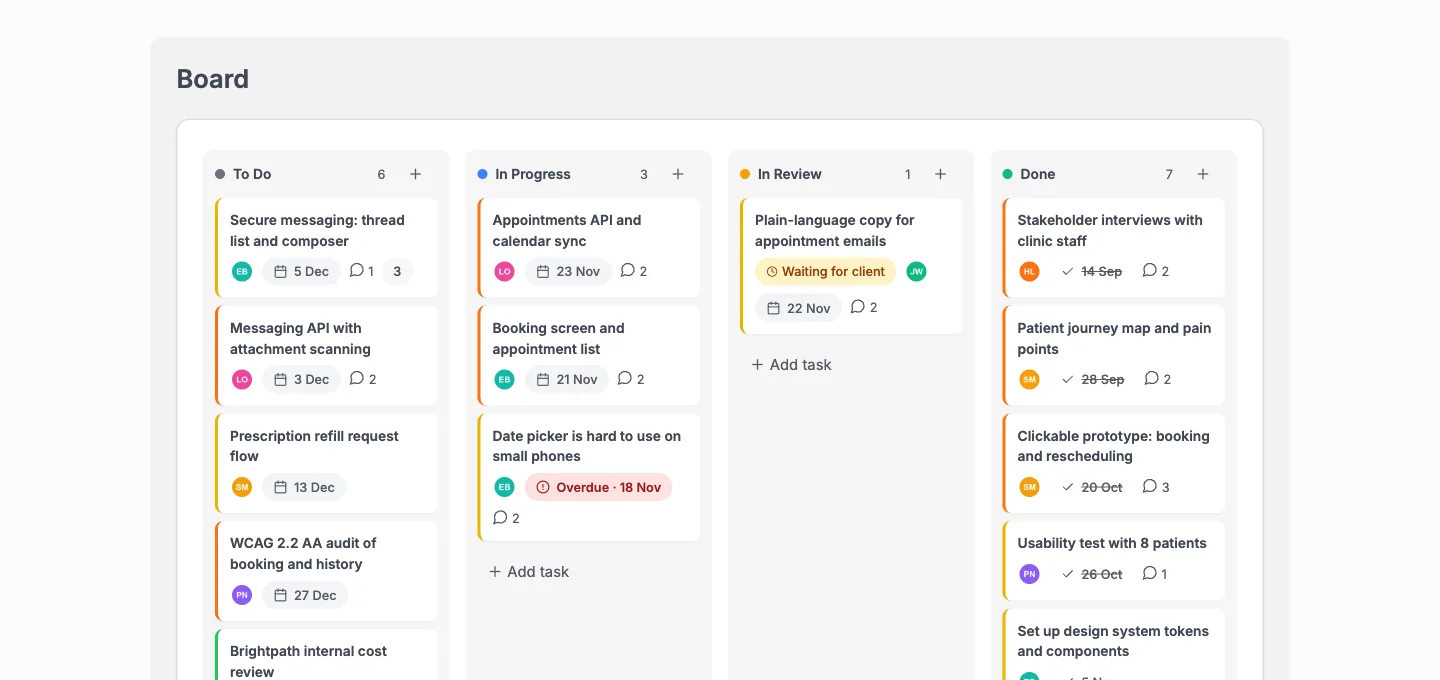
Cards carry status, priority, several assignees, due dates, labels, subtasks, checklists, comments with @mentions and file attachments. Columns are yours to rename, reorder, add or remove for each project. You drag cards on a desktop, move them from the keyboard with Space or Enter and the arrow keys, or tap a card on a phone to open a full-screen sheet with a Move control.
Two badges on that board matter for agencies. An Internal badge marks a task that clients never see. A Waiting for client badge marks a task where you asked for sign-off and are still waiting for an answer. Both show on the board, so the team can read the state of every card without opening it.
The same tasks also show as a task list, a Gantt timeline and a calendar with .ics export, so a card moved on the board moves everywhere.
What does the Trello JSON import bring across?
The import reads Trello’s own JSON export of a single board and creates one new project from it. Here is what happens to each part.
| In Trello | In Kanbanomy |
|---|---|
| Open lists | Board columns |
| Open cards | Tasks with description, start and due date |
| Labels | Labels |
| Checklists | Checklist items on the task |
| Comments | Comments, with their original dates |
| Members | Team members, matched to site users |
| Links attached to a card | Kept in the task description |
| A card marked complete | A task in Done |
When a card has more than one checklist, items arrive named “Checklist: item” so you can tell them apart. Trello dates are read in your site’s timezone.
People are matched to existing site users by email first, then username, then name. Anyone who does not match is left unassigned and listed in the results. No accounts are created, so add your team to the site before you import if you want cards assigned on day one.
What stays behind when you leave Trello?
Be clear about this before you start, because it decides how much cleanup you do afterwards.
- Archived cards and lists. They are skipped and counted under Left out.
- Files stored on Trello. Attachments do not come across. The links are kept in the description, so you can still find the file and re-upload the ones you need.
- Custom fields, covers and Power-Ups. None of these carry over.
- Very old comments on a busy board. Trello’s JSON export holds up to 1,000 recent actions, so older comments may not be in the file.
- Milestones and time entries. No import in Kanbanomy brings these. Trello has no time entries to bring, but you will want to create milestones by hand.
A Trello file can be up to 50 MB.
How does the move from Trello work, step by step?
The path takes minutes for a single board.
- Install Kanbanomy. Download, install and activate it on your WordPress site. There is no composer or npm step.
- Add your team as users. Create or invite the people who appear on the board, so they can be matched on import.
- Export from Trello. Open the board, choose Menu, then Print, export and share, then Export as JSON. This works on Trello’s free plan.
- Open the import screen. In WordPress go to Kanbanomy, then Import / Export, then the Import tab. Choose Trello board, pick the file and click Upload and preview.
- Read the preview. Kanbanomy shows the cards, subtasks, columns, labels, checklist items, comments and people it found, plus what it will leave out. Under People, change any match you disagree with.
- Start the import. Click Import N tasks into a new project. It runs in the background with a progress bar, and nobody receives an email while it runs. You get one notification when it finishes.
- Read the results. The results list what was created, what was left out, who was not matched, and any value Kanbanomy could not read. Then open the project.
If something looks wrong, open the import from the Import log, type UNDO and click Undo import. It removes exactly what that import created. Work you added by hand since then stays.
What do a Gantt, hours and approvals add to a board?
This is the reason most people switch. A board shows state. These three show time, effort and agreement.
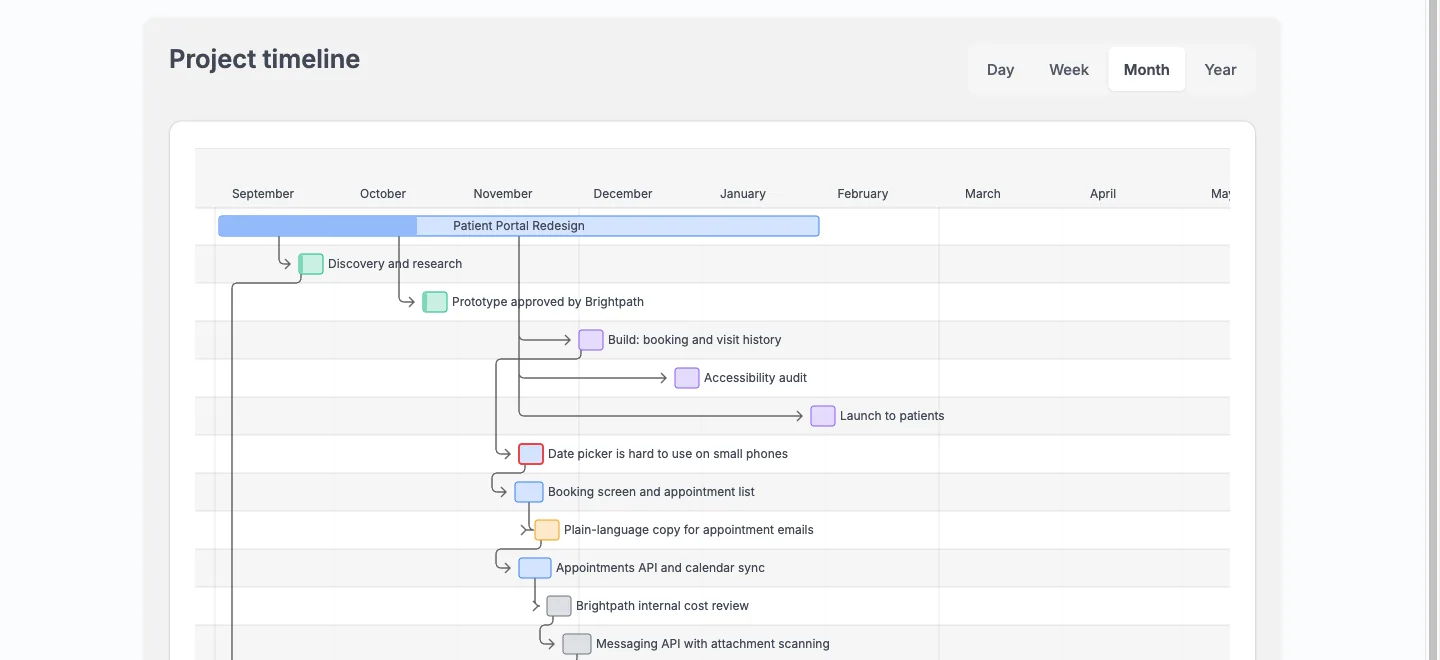
The Gantt timeline. Tasks and milestones show as bars, and dependency arrows connect tasks that wait on each other. Switch between Day, Week, Month and Year. Managers can drag a bar to reschedule it. The Gantt plots up to 200 dated tasks, open work first, so a very large project needs its dates kept tidy.
Imported cards only appear on the Gantt if they have dates. Trello cards with a start and due date arrive with both. A card with no date stays on the board and does not show on the timeline, so add dates to the ones that matter.
Hours. Press Start timer in any task, and one entry is written when you stop. Each entry is billable or non-billable, and the project’s Time card compares hours logged with the sum of task estimates. A forgotten timer stops itself after 12 hours. Time is for your team only, and clients never see a timer or a total.
Approvals. Tick Needs client approval on a task and every client on the project gets an email and a notice titled Your approval is needed. They approve, or ask for changes and write what should change. The answer is recorded in the activity history. Approving does not move the task, so you decide when it goes to Done.
How do clients see the work without sharing your whole board?
You add a client to a project with the Viewer role. The Client user role ships with the plugin for this. They log in, land on the Hub and see only the projects shared with them. They never enter wp-admin.
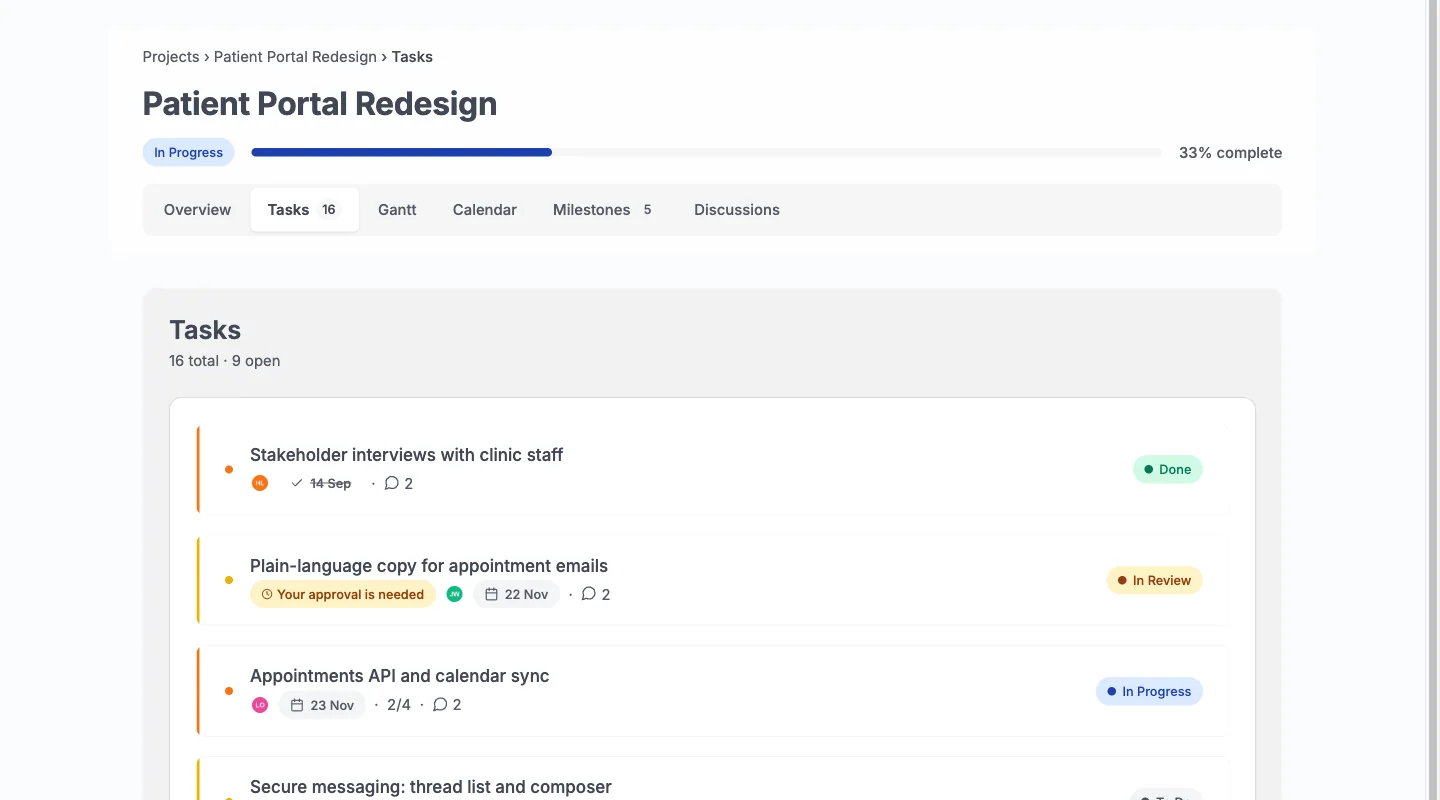
A client sees the Overview, Tasks, Gantt, Calendar, Milestones and Discussions tabs of a shared project. They can comment on any task they can see, and they can answer approval requests. They cannot move or edit a task. Tasks marked Internal are hidden everywhere, including counts, search, calendar feeds and emails. Team-only comments and discussions stay hidden too, and so do logged time and the activity log.
This replaces the two-board habit. You keep one project, mark the tasks the client should not see as Internal, and the client view stays clean without copying anything.
One limit to know. Clients cannot request timeline changes. They can comment and approve, but a change request is not something they can raise in version 1.3.0.
What does it cost to run Kanbanomy instead of Trello?
Pricing is per site, and every feature is in every licence. There is no per-user fee and no per-project fee, so a client or a contractor does not add to the bill.
| Licence | Yearly | Pay once | Sites |
|---|---|---|---|
| Personal | $69 | $199 | 1 |
| Developer | $99 | $299 | 5 |
| Agency | $399 | Not offered | Unlimited |
Agency is yearly only. Personal and Developer can be bought once, and the 30 day refund applies. If a yearly licence lapses, the plugin and every feature keep working. You stop receiving updates and support, and nothing is switched off.
The other cost is hosting. You already pay for a WordPress site, and Kanbanomy runs on it. You own backups and uptime, which is the trade for owning the data. Compare that with your current Trello bill on Trello’s own pricing page, since plans change.
Where does the data live after you move?
In your own WordPress database, in 25 tables that the plugin creates. Project data is not sent anywhere. The only outbound request the plugin makes is the licence check, which sends your key and site URL and never your content.
Two practical points follow from that. First, your backup must cover the whole database, not only posts and pages, because Kanbanomy does not store its data as posts. Second, deleting the plugin keeps your data by default, and you have to opt in to erase it.
Import and Export is a data-transfer tool and is not a backup. Export can produce projects, tasks, milestones and time entries as CSV, but Import only accepts projects and tasks. Use a real database backup, and try a restore on a staging copy once.
What should you check before you move from Trello?
Work through this list on a single board first.
- Pick a pilot board. Choose a live client project with a clear end date, not your busiest one.
- List your Power-Ups. Write down what each one does and decide whether Kanbanomy covers it or you let it go.
- Add people to the site. Create users for the team, and for each client who should be added to the project.
- Decide on Internal. Note which cards the client should never see, so you can mark them after the import.
- Check your email. Kanbanomy sends mail through WordPress, so test that your site can deliver mail, and use an SMTP plugin in production.
- Check your cron. Recurring tasks and milestone reminders use scheduled jobs. A low-traffic site with cron disabled needs a real system cron.
- Confirm a backup. Have a database backup and know how to restore it.
- Export the board. Keep the JSON as an archive, since attachments and archived cards will not come across.
Where does Trello still win?
Trello is a hosted product, so a few things are simply easier there. You sign up and share a link, and nobody has to think about hosting, backups or updates. If you want a board running in two minutes with no WordPress site, Kanbanomy is the wrong tool.
Trello also has a native mobile app, and Kanbanomy does not. The responsive interface works in a phone browser, but that gap is real for a team that lives on a phone.
Power-Ups are the third area. If your process depends on a particular Power-Up, check whether Kanbanomy has an equivalent before you commit. It has Slack through an incoming webhook, signed webhooks and a REST API, but it is not a marketplace of add-ons.
Finally, Kanbanomy has no invoicing. If your workflow ties a card to a bill, keep your billing tool and export logged time to CSV.
Who should not switch from Trello?
Stay on Trello if any of these describe you.
- You do not run WordPress and have no wish to.
- Your board is a personal to-do list or a small team board with no clients and no deadlines beyond the card date.
- You depend on one Power-Up that has no replacement.
- Your team works mainly from a phone app.
- You need clients to request timeline changes, since that is not available.
- You want invoicing or a deal pipeline in the same tool.
Kanbanomy fits when you already run WordPress, work with clients, and want schedule, hours and approvals next to the board.
What should you do in the first week after moving?
Keep the first week small and real.
- Day one. Open the imported project, scan every column, and fix the cards that landed in the wrong place. Add the milestones the import cannot bring.
- Day one. Mark internal cards and set a billable default for time on the project’s Settings tab.
- Day two. Invite one client with the Viewer role and open the project as that client, using the email they receive, to see exactly what they see.
- Day three. Add dates to the cards that drive the schedule and open the Gantt. Add dependencies where one task waits on another.
- Day four. Ask the client to approve one task, and watch the Waiting for client badge appear on the board.
- Day five. Log real hours with the timer and read the project’s Time card against the estimate.
At the end of the week, decide whether to move the next board. Keep the Trello board as read-only history until you are sure. For the full list of screens and options, read the Kanbanomy docs on importing existing work, and see the migration guide for the same path with more screenshots. You can also compare plans on the pricing page or try the demo first.
Who moves from Trello.
- Agencies who invite clients to boards and watch the seat count climb.
- Teams who hit the edge of a board: no timeline, no hours, no approvals, so work spreads across three tools.
- Site owners who would rather keep project data in their own database than on a vendor’s servers.
Trello and Kanbanomy side by side.
| What matters | Trello | Kanbanomy |
|---|---|---|
| Where the data lives | On Trello’s servers | In your own WordPress database |
| How you pay as you grow | Per user, per month | One licence per site, no seat meter |
| Adding a client | Usually a seat, a guest slot or an upgrade | A Client role, as many as you need |
| Keeping internal work from clients | Depends on the plan and how you set it up | Internal tasks and team-only threads are built in |
| If you stop paying | Access ends | Everything keeps working, forever |
What moves across from Trello.
Lists become columns
Open lists become Board columns, and open cards become tasks with their description, dates, labels and members.
Checklists and comments come along
Every checklist and every comment arrives with its original date. Links attached to a card are kept in its description.
You check it first
The import shows a preview before anything is created, emails nobody while it runs, and can be undone for 7 days.
How to move.
- In Trello, open the board and choose Menu, then Print, export and share, then Export as JSON. This works on the free plan.
- In WordPress, open Kanbanomy, then Import, choose Trello board and upload the file.
- Check the preview, match people to your site users, and start the import.
Check this first.
- Files stored on Trello and archived cards and lists do not come across.
- Custom fields, covers and Power-Ups do not carry over. List the Power-Ups you rely on before you move.
- Milestones and time entries are not part of any import. Recreate them by hand.
Try it for this topic.
Open the guided demo, a client-services studio with real projects, or launch your own sandbox copy on InstaWP. Here is what to click:
- Open Import in the demo and look at what comes across and what stays behind.
- Open a project and move a card on the Board, then check the Gantt.
- Sign in as the client and compare what they see with what the manager sees.
Trello to Kanbanomy: questions
Can I keep using Trello for some boards while I try Kanbanomy?
Yes. An import copies a board into a new Kanbanomy project and leaves the Trello board untouched. Move one board, run a real client project on it for a few weeks, and decide about the rest later.
What happens to Trello Power-Ups after I move?
They stay behind. Custom fields, covers and Power-Ups are not part of the import. Kanbanomy has its own custom fields, labels, checklists, time tracking, Slack and webhooks, so list what each Power-Up did and rebuild only what you still need.
Do my clients need a Trello account or a paid seat?
No. A client is a WordPress user with the Client role, added to a project as a viewer. There is no per-user fee, so adding clients does not change your licence cost.
Is there a native mobile app like Trello has?
No. Kanbanomy has no native mobile app. The interface is responsive and works in a phone browser, and on a phone a tapped card opens as a full-screen sheet with a Move control.
Does Kanbanomy import Trello boards?
Yes. Export the board as JSON from Trello and upload it. Lists, cards, labels, checklists, comments, members and dates come across into a new project, after a preview.
Is Kanbanomy free like Trello?
No. It is a paid plugin with no per-user or per-project fee: Personal is $69 a year or $199 once, Developer is $99 a year or $299 once, and Agency is $399 a year. Every feature is in every licence.
Can my clients use the board?
They get a Client role with no wp-admin. They see the tasks, milestones and Gantt you share, comment, and approve work. Internal tasks and team-only threads stay hidden.
Other comparisons.
Asana alternative, ClickUp alternative, Teamwork alternative, Monday alternative. Or read about the client portal and self-hosted project management.
Try it with your own Trello board.
Self-hosted project management with no per-user fee, no per-project fee and a one-time licence. Try the demo first, then pick the licence that fits your sites.