
How to migrate Trello to WordPress
Export your board as JSON from Trello, open Kanbanomy then Import, choose Trello board and upload the file. Check the preview, match your people, start the import, and undo it for 7 days if anything looks wrong.
To migrate Trello to WordPress with Kanbanomy, export the board as JSON from Trello, go to Kanbanomy > Import / Export > Import in WordPress, choose Trello board and upload the file. You read a preview, match people to site users, and start the import. Open lists become Board columns and open cards become tasks.
You pay no per-user fee and no per-project fee, and the work lives in your own WordPress database. The import is undoable for 7 days. This guide covers every step, what comes across, what stays behind, and how to run both tools side by side for a week.
How do I export a board from Trello?
Open the board you want to move. Choose Menu, then Print, export and share, then Export as JSON. Save the file. This works on Trello’s free plan, so you do not need to upgrade anything.
Export one board at a time. Each board becomes one new project in Kanbanomy, which keeps the preview small and the undo precise.
Keep the file somewhere you can find it. Kanbanomy accepts a Trello file up to 50 MB. If your file is larger, split the board or ask your host to raise the limit.
One quirk to know about. Trello’s JSON export holds up to 1,000 recent actions, so very old comments on a busy board may not be in the file. Cards, lists and checklists are not affected.
What should I do before I import?
A few minutes of preparation saves a lot of cleanup. Work through this checklist.
- Add your team as site users first. Kanbanomy matches people by email, then username, then name. It never creates accounts during an import. See the invite your team guide for how invitations work.
- Check your role. Administrators and Project Managers can import.
- Confirm the basics. You need WordPress 7.0 or newer and PHP 8.1 to 8.5. Kanbanomy installs like any plugin, with no composer or npm step.
- Clean the board in Trello if you want. Archived cards and lists are skipped, so archive anything you do not want to carry over.
- Download the attachments you need. Files stored on Trello do not travel.
- Check that your host sends email. Invitations and notifications use WordPress mail. An SMTP plugin fixes most delivery problems.
- Confirm a backup. Your backup should cover the full database, since Kanbanomy adds 25 tables.
How do I import the board, step by step?
Follow these steps in order.
- In WordPress, open Kanbanomy > Import / Export and choose the Import tab.
- Under Where is your work now? choose Trello board.
- Choose the JSON file you exported.
- Click Upload and preview.
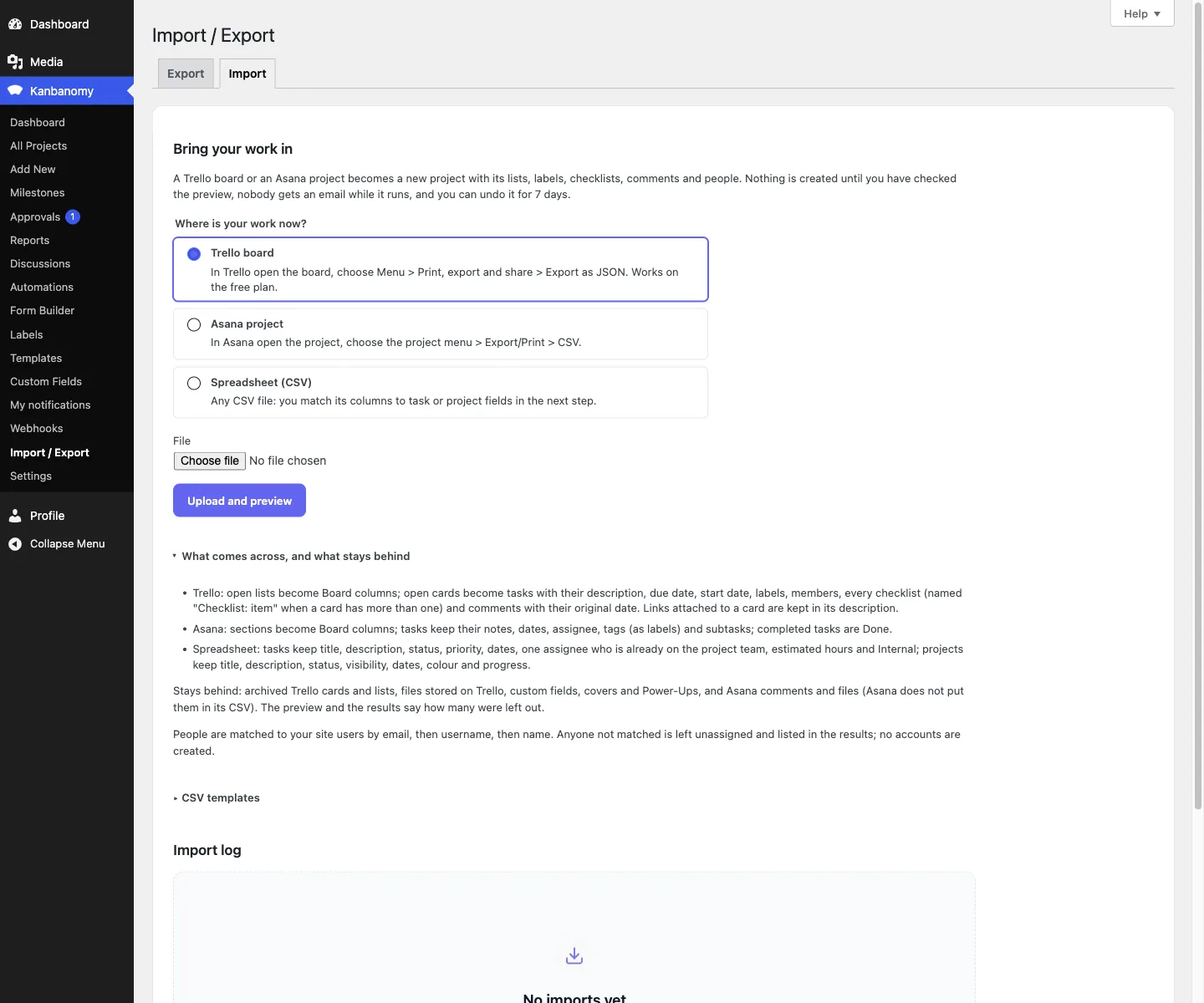
The same screen has a section called What comes across, and what stays behind. Open it if you want the full list before you start.
Nothing is created yet. Kanbanomy reads the file and moves to the preview.
What does the preview show?
The preview lists what the file holds before anything is created. You see cards, subtasks, columns, labels, checklist items, comments and people.
Under Left out, Kanbanomy counts what will not come across, such as archived cards and files stored on Trello. Read this block. It is the honest list of what you will rebuild or fetch by hand.
Under People, each person from Trello appears next to the site user they matched. The match order is email, then username, then name. Click a person to pick someone else. Click Clear to leave their cards unassigned.
Matched people join the new project’s team. Their comments keep their name and the original date.
When you are happy, click Import N tasks into a new project.
What do I see while it runs and afterwards?
The import runs in the background with a progress bar. You can close the page and come back from the Import log at the bottom of the Import tab. Nobody gets an email while it runs. When it finishes, you get one notification in the bell.
The results page lists what was created, what was left out, who was not matched and any value Kanbanomy could not read. Under Values to check, a row was imported but one value was not recognised. The note gives the row, the value and what Kanbanomy used instead.
Click Open the project to see the work. Your Trello lists are now Board columns, and your cards are tasks you can drag between them.
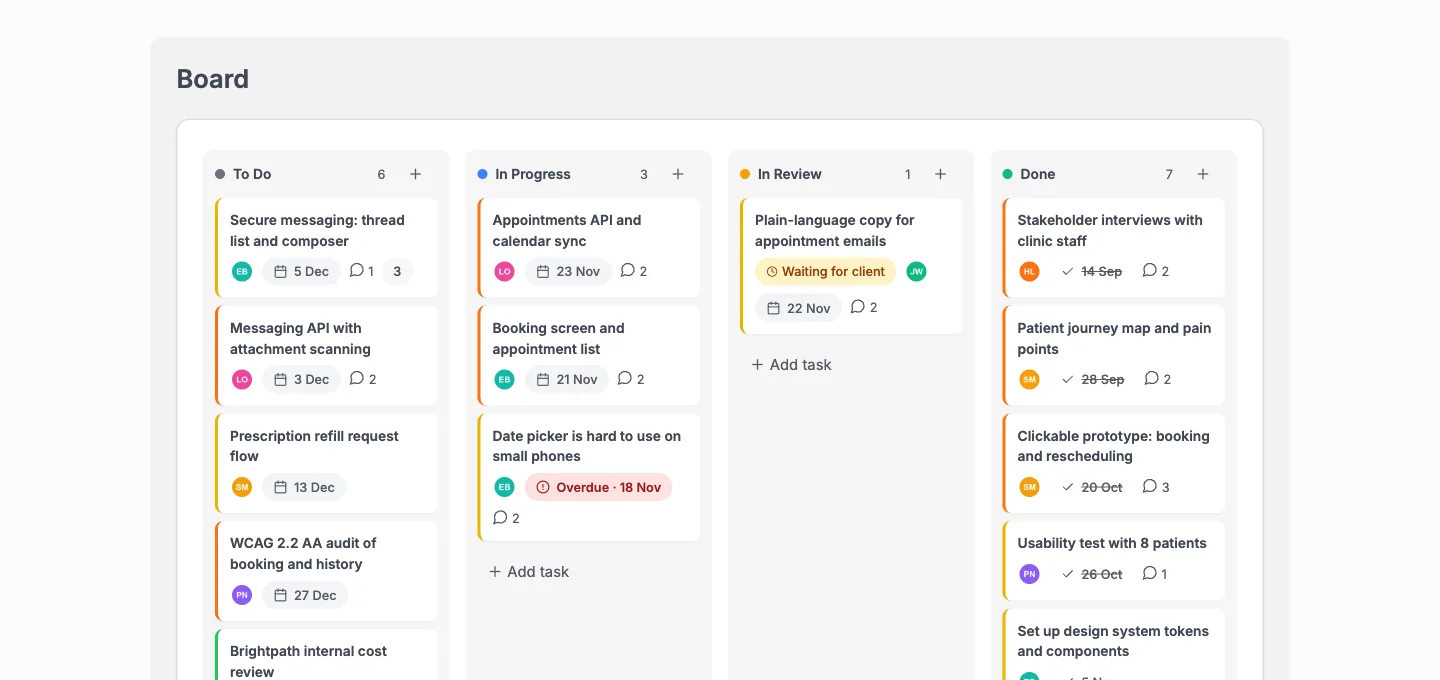
Open a few cards and compare them with Trello. Check one with several checklists, one with comments and one with labels. Ten minutes here tells you whether the mapping suits your team.
What comes across from Trello and what stays behind?
| Trello | What happens in Kanbanomy |
|---|---|
| Open lists | Board columns |
| Open cards | Tasks with description, due date and start date |
| Labels | Labels |
| Members | Task assignees, when matched to a site user |
| Checklists | Checklists on the task, each one named “Checklist: item” when a card has more than one |
| Comments | Comments with their original dates |
| Links in a card | Kept in the task description |
| Cards marked complete | Done |
| Attachments stored on Trello | Stay behind |
| Archived cards and lists | Stay behind |
| Custom fields, covers, Power-Ups | Stay behind |
Trello dates are read in your site’s timezone. Milestones and time entries do not exist in an import, so recreate them by hand once the board is in.
The most common surprise is attachments. If your cards lean on files, plan time to download them from Trello and attach them in Kanbanomy. Attachments in Kanbanomy are private files.
Can I undo an import?
Yes, for 7 days. Open the import from the Import log, type UNDO and click Undo import.
Undo removes exactly what that import created. That means its tasks with their comments, plus the columns, labels and team members it added. Work you added by hand since stays. So does the project, if it holds any of that work.
If imported tasks were changed after the import, the undo box tells you how many before you confirm. Try an import, look at it, and undo it if the mapping feels wrong. A second try costs nothing.
What does one imported card look like?
Take a card called “Draft launch email” on a board called Marketing. It sits in the list “In progress”, has a start date and a due date, two labels, one member, a description with a link, and two checklists named “Copy” and “Design”. It also has three comments.
After the import, you find it like this.
- A task titled “Draft launch email” in the Board column “In progress”.
- The start and due dates on the task, which also place it on the Gantt timeline and the calendar.
- The two labels, listed under Kanbanomy > Labels.
- The member as an assignee, if they matched a site user, and on the project team.
- The description with the link kept in the text.
- The checklist items, named “Copy: item” and “Design: item”, because the card has more than one checklist.
- The three comments, each with the original author name and date.
If the card was marked complete in Trello, it arrives as Done. If it had a cover or a custom field, those are gone, and the preview counted them.
This is the card to open first when you check the result. If it looks right, the rest of the board will too.
How do Trello ideas map to Kanbanomy?
The vocabulary shifts a little. This table helps people on your team find their way.
| In Trello you think of | In Kanbanomy you look for |
|---|---|
| A board | A project, with its own team and Board tab |
| A list | A Board column, which you can rename and reorder per project |
| A card | A task, opened in a side panel |
| A label | A label, managed under Kanbanomy > Labels |
| A member | An assignee, who must be on the project team |
| A checklist | A checklist inside the task |
| A due date | A due date, shown on the list, Gantt and calendar |
The Board will feel familiar. Drag cards between columns and the move saves immediately. It is also keyboard accessible, so you can pick up a card with Space or Enter and move it with the arrow keys.
What is new is the other views. The same tasks appear as a task list you can sort and filter, as bars on a Gantt timeline, and on a calendar. You can also track time on a task and see estimated against logged hours in Reports.
What does it cost to run Kanbanomy after the move?
You pay for the plugin and nothing per person. There is no per-user fee and no per-project fee. Every feature is in every licence, and pricing is per site.
| Licence | Yearly | Pay once (lifetime) | Sites |
|---|---|---|---|
| Personal | $69 | $199 | 1 |
| Developer | $99 | $299 | 5 |
| Agency | $399 | Not offered | Unlimited |
Personal and Developer can be bought once and kept. Agency is yearly. If a licence lapses, the plugin keeps working with all its features, and updates and support stop. A 30-day refund is available. See pricing for current details.
Your own running costs are hosting, backups and email delivery, which most WordPress sites already have. For a deeper look at the trade, read about self-hosted project management. For the Trello side, check the tool’s current pricing page.
Where does my data live after the import?
In your own WordPress database, in 25 tables that Kanbanomy creates. Uploaded import files sit in a private folder under wp-content/uploads/kanbanomy-private/ only until the import finishes, then they are deleted. Apache protects that folder automatically. On nginx you add a deny rule for it.
No project data leaves your site. The only outbound request is the licence check, which sends your key and site URL and never your content. Deleting the plugin keeps your data by default.
How do I run Trello and Kanbanomy side by side for a week?
You do not have to switch in a day. A week of overlap gives you proof before you commit.
- Day 1. Import one board. Leave Trello untouched and treat it as the source of truth.
- Day 2. Review the results page. Fix anything under Values to check by hand.
- Day 3. Invite two teammates. Ask them to open their Hub and look at their tasks.
- Day 4. Make Kanbanomy the place where new cards are created for that board. Keep Trello read-only.
- Day 5. Recreate milestones, set Board column order and add the labels you want.
- Day 6. Import the next board. Repeat the preview and the people matching.
- Day 7. Decide. If the team did not open Trello all week, archive the old board.
If you work with clients, add one as a Viewer with the Client role on a test project and look at the Hub in a private window. The client portal page shows what they see.
What does the first week of real use look like?
Once you commit, this plan keeps the move calm.
- Set the defaults. Under Kanbanomy > Settings, check default project visibility. New projects are members only by default.
- Tidy the columns. Rename, reorder or remove Board columns to match how the team works.
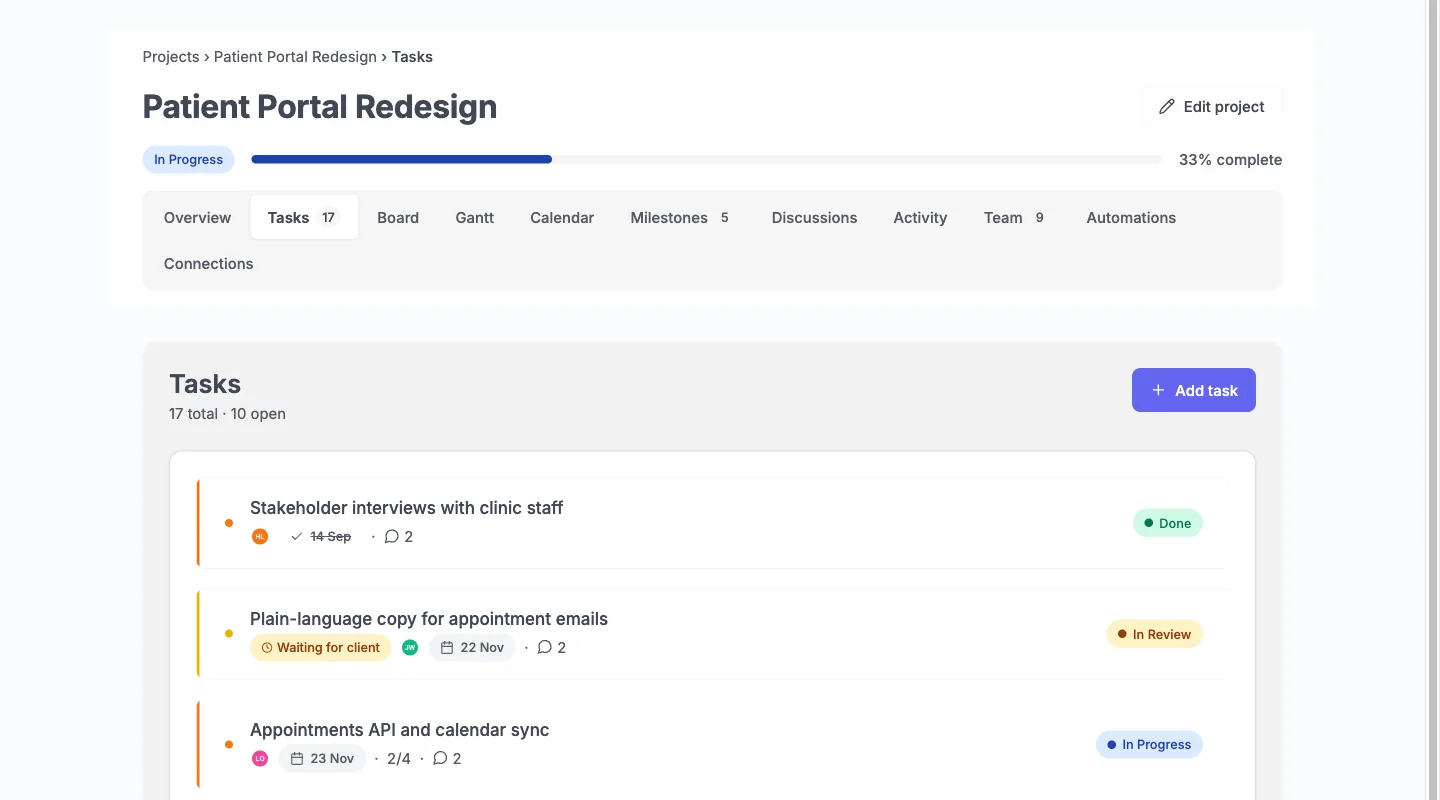
- Teach the views. Show the team the task list, the Board, the Gantt timeline and the calendar. They show the same tasks.
- Add dates where they matter. Trello cards often have no dates. The Gantt and calendar need them.
- Set up automation. Add a rule or two. A rule has a trigger, conditions and an action, with up to 20 rules per project.
- Connect Slack. Notifications go through an incoming webhook.
- Remove the old habit. Ask people to stop adding cards in Trello on a set day.
What if something goes wrong?
These messages and fixes come from the import docs.
- “That file is not a Trello board export.” You uploaded something other than the JSON export. Export the board as JSON from Trello, not as CSV or a printout.
- The file is too large. Split the board, or ask your host to raise the limit. Developers can use the
kanbanomy_import_max_bytesfilter. - Someone is unassigned. They did not match a site user. Add them to the site, undo the import and run it again, or assign them by hand.
- Old comments are missing. Trello’s export holds up to 1,000 recent actions, so very old comments on a busy board may not be there.
- The import went to the wrong place. Undo it from the Import log within 7 days.
- Nginx sites. Add a deny rule for the private upload folder.
More answers live in the docs.
What are the limits?
Know these before you start.
- No direct import brings milestones or time entries.
- Attachments, archived cards, custom fields, covers and Power-Ups stay behind.
- There is no invoicing, no native mobile app and no bundled translations.
- Clients cannot request timeline changes.
- Import is not a backup. Use a real database backup.
- Hundreds of boards with deep history are a big job. Budget for it or start fresh and keep Trello as an archive.
Who should not switch?
Stay on Trello if your cards depend on Power-Ups or custom fields that you cannot give up. Stay too if you want a vendor to host and back up everything for you, because Kanbanomy is self-hosted and you own that work. The same goes for any team that needs a native phone app.
If you are unsure, read the Trello alternative page, try the demo, and import one board. You can see all four views on your own data and undo it within 7 days.
Try it for this topic.
Open the guided demo, a client-services studio with real projects, or launch your own sandbox copy on InstaWP. Here is what to click:
- Open Kanbanomy, then Import, and look at the three sources.
- Open the import screen’s list of what comes across and what stays behind.
- Open a project in the demo and check the Board columns, labels and checklists an import would create.
Questions before you install
Do I need a paid Trello plan to export a board?
No. The JSON export works on Trello's free plan. Open the board, then Menu, Print, export and share, Export as JSON. Kanbanomy reads that file directly, and a Trello file can be up to 50 MB.
Will my Trello attachments come across?
No. Files stored on Trello stay behind, and Kanbanomy counts them under Left out in the preview. Links attached to a card are kept in the task description, so you can still reach them. Download the files from Trello and attach them in Kanbanomy if you need them.
Can I import the same board twice?
Yes, each import creates a new project. If the first try is off, open the Import log, type UNDO and click Undo import within 7 days. Undo removes what the import created, and work you added by hand since stays.
What happens to people who are not on my WordPress site?
They are left unassigned and listed in the preview and the results. No accounts are created and nobody is emailed during the import. Add them as site users first if you want their cards assigned.
Run the work. Share the result.
Self-hosted project management with no per-user fee, no per-project fee and a one-time licence. Try the demo first, then pick the licence that fits your sites.