
How to import an Asana project to WordPress
Export the project to CSV from Asana, open Kanbanomy then Import, choose Asana project and upload the file. Sections become Board columns, tasks keep their notes, dates and assignee, and you can undo for 7 days.
To import an Asana project to WordPress, export the project as CSV from Asana, then go to Kanbanomy > Import / Export > Import, choose Asana project and upload the file. A preview shows what will be created. Sections become Board columns, and tasks come across with notes, dates, assignee, tags and priority.
Kanbanomy has no per-user fee and no per-project fee, and your data stays in your own WordPress database. One thing to plan for is that Asana’s CSV has no comments or files, so those stay behind. This guide covers every step, a checklist, a first-week plan and fixes for common problems.
How do I export an Asana project to CSV?
Open the project in Asana. Use the project menu, then Export/Print, then CSV. Save the file.
Do this for one project at a time. Each import creates one new project in Kanbanomy, so the preview and the undo stay easy to read.
Kanbanomy needs two columns in the file, Name and Section/Column. Asana’s own export includes both. If you edit the file in a spreadsheet, leave those headings alone. An Asana file can be up to 20 MB.
What should I do before I import?
Work through this checklist first.
- Add your team to WordPress. People are matched to site users by email, then username, then name. No accounts are created, and anyone unmatched is left unassigned.
- Check your role. Administrators and Project Managers can import.
- Check the basics. You need WordPress 7.0 or newer and PHP 8.1 to 8.5. Kanbanomy installs like any plugin.
- Tidy Asana if you like. Anything you do not want in the new project is easier to remove before the export.
- Save the context you will lose. Comments and files are not in the CSV. Download the files that matter and note any decision that lives only in a comment thread.
- Confirm email delivery. Invitations and notifications go through WordPress mail.
- Confirm a backup. Make sure it covers the full database, because Kanbanomy adds 25 tables.
Our guide on inviting your team explains how to add people by email, and the account is created for them.
How do I run the import, step by step?
- In WordPress, open Kanbanomy > Import / Export and choose the Import tab.
- Under Where is your work now? choose Asana project.
- Choose the CSV file.
- Click Upload and preview.
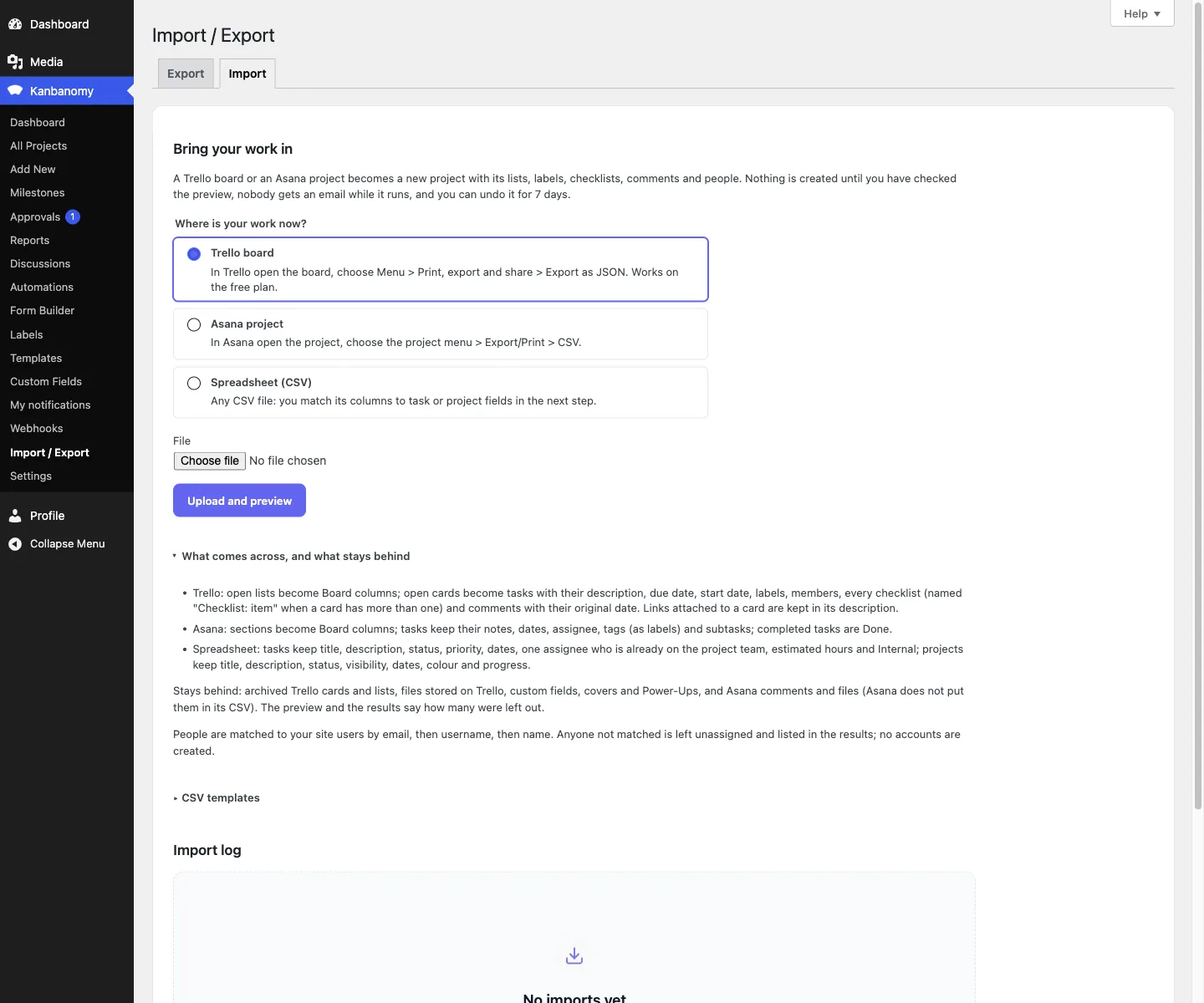
The screen also has a section called What comes across, and what stays behind. It is worth a read before you click anything.
Kanbanomy reads the file and shows a preview. Nothing is created yet.
What does the preview tell me?
You see how many tasks and subtasks the file holds, the columns, the labels and the people. Under Left out, Kanbanomy counts what will not come across.
Under People, each person from Asana is shown next to the site user they matched. Click a person to choose someone else. Click Clear to leave their tasks unassigned. Matched people join the new project’s team.
Read the people list carefully. Names in Asana often differ from names on your site, and a quick fix here saves editing tasks later.
When it looks right, click Import N tasks into a new project.
What happens while it runs, and what do I see after?
The import runs in the background with a progress bar. You can close the page and return from the Import log at the bottom of the Import tab. Nobody gets an email while it runs, and you get one notification when it finishes.
The results list what was created, what was left out, who was not matched, and any value Kanbanomy could not read. Under Values to check, a row was imported but one value was not recognised. The note names the row, the value and what Kanbanomy used instead. For example, a priority word it does not know becomes Medium.
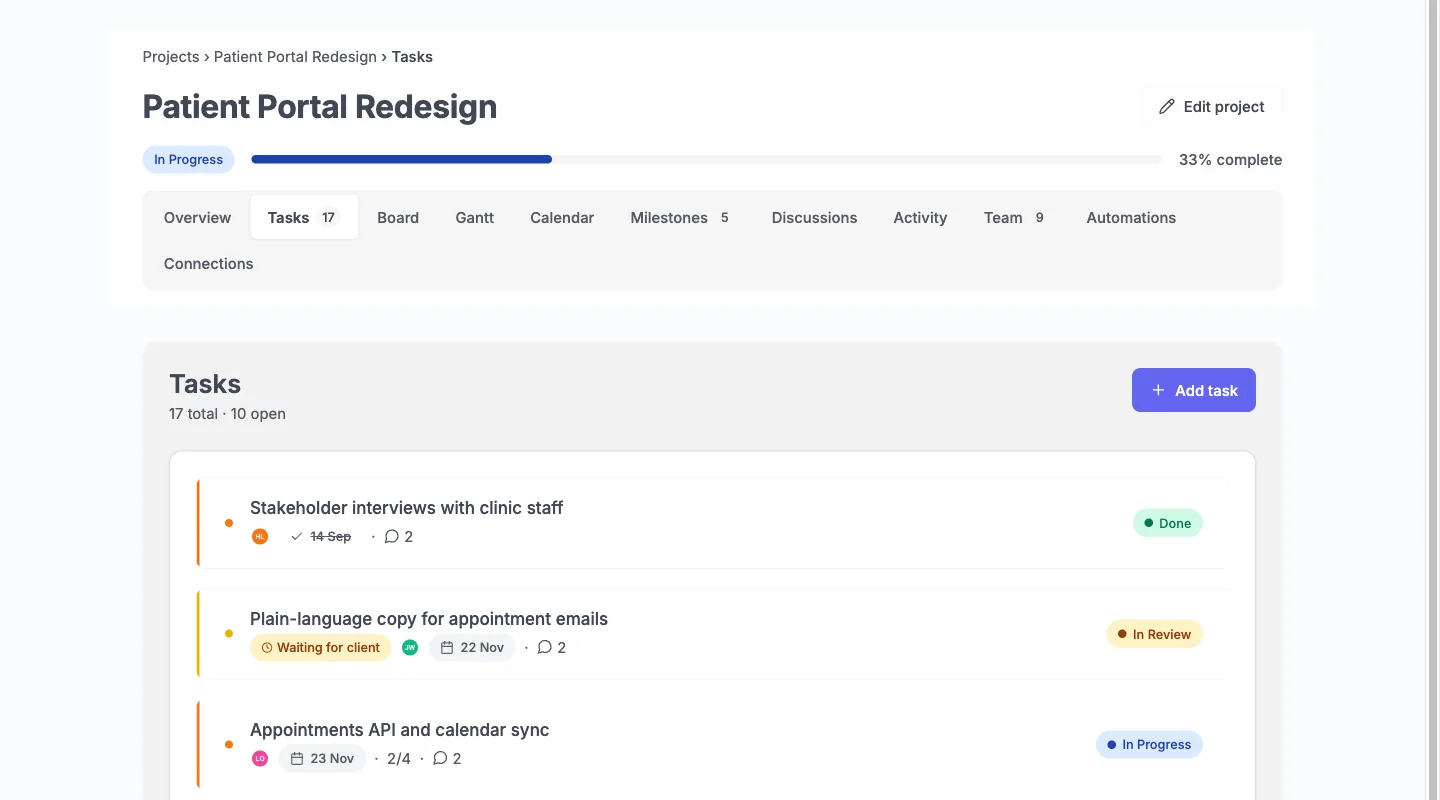
Click Open the project. Your Asana sections are now Board columns. Open the Tasks tab to see the list, and the Board tab to see columns.
What comes across from Asana and what stays behind?
| Asana CSV | What happens in Kanbanomy |
|---|---|
| Sections | Board columns |
| Tasks | Tasks with notes as the description |
| Start and due dates | Start and due dates |
| Assignee | Assignee, when matched to a site user |
| Tags | Labels |
| Priority | Priority |
| Subtasks (one level) | Subtasks |
| Completed At date | Done, in the Done column |
| Comments | Not in the CSV, so not imported |
| Files | Not in the CSV, so not imported |
| Custom fields | Stay behind |
Milestones and time entries are not part of any import. If your Asana project used milestone tasks, recreate them as milestones in Kanbanomy by hand.
The reason comments and files are missing is simple. Asana does not put them in its CSV, so there is nothing for Kanbanomy to read.
How are statuses, priorities and dates read?
Kanbanomy reads the words other tools export and ignores capitals and extra spaces. Anything it cannot read is listed under Values to check, never dropped silently.
| Field | What Kanbanomy does |
|---|---|
| Status words | Reads To Do, In Progress, In Review and Done, plus common words such as Backlog, Not started, Doing, Blocked, Needs review, Complete and Closed. Unknown words become To Do. |
| Priority words | Reads Low, Medium, High and Critical, plus Urgent, Normal, Major and Minor. Unknown words become Medium. |
| Dates | Reads 2026-11-27, 27/11/2026, 11/30/2026, 27.11.2026 and written dates such as Nov 27, 2026. Unreadable dates are left empty. |
Dates such as 05/12/2026 can mean 5 December or 12 May. Kanbanomy follows your site’s date format under Settings > General. A number over 12 settles it, a date with dots is always day first, and 2026-12-05 is always safe.
What does one imported Asana task look like?
Take a task called “Write case study” in the section “This week”. It has notes, a start date, a due date, one assignee, the tag “Content”, a priority and two subtasks. One subtask is already completed.
After the import, you find it like this.
- A task titled “Write case study” in the Board column “This week”.
- The notes as the task description.
- The start and due dates, which also place the task on the Gantt timeline and the calendar.
- The assignee, if they matched a site user, who also joins the project team.
- The tag “Content” as a label.
- The priority, or Medium if Kanbanomy did not recognise the word, with a note under Values to check.
- Two subtasks, each a full child task. The completed one is Done.
Open this task first when you check the result. If it looks right, the rest of the project probably does too.
How do Asana terms map to Kanbanomy?
Your team will ask where things went. This table answers most of it.
| In Asana you think of | In Kanbanomy you look for |
|---|---|
| A project | A project, with its own team, settings and tabs |
| A section | A Board column, which you can rename and reorder |
| A task | A task, opened in a side panel from any view |
| A subtask | A subtask, a full child task |
| A tag | A label, managed under Kanbanomy > Labels |
| An assignee | An assignee, who must be on the project team |
| A due date | A due date on the list, Gantt and calendar |
| Marking complete | Status Done |
Kanbanomy shows the same work in four ways. Use the task list to filter and sort, the Board to drag work through columns, the Gantt to see dependencies, and the calendar for deadlines. Saved views let you keep a filter you use every morning.
How do I deal with the comments and files that stay behind?
This is the one real gap in an Asana move, so plan for it.
- Decide what matters. Most old comments are chatter. A few hold decisions.
- Copy the decisions. Paste the important ones into the task description in Kanbanomy, with a date.
- Download the files. Save the files you still need from Asana and attach them to the matching tasks. Attachments in Kanbanomy are private files.
- Keep Asana as an archive. For finished projects, leave them where they are and read them when needed.
- Start live work fresh. Active projects are where the move pays off, so import those first.
You do not have to move everything. You can import only the live projects and leave closed ones in the old tool.
Can I undo the import?
Yes, for 7 days. Open the import from the Import log, type UNDO and click Undo import.
Undo removes exactly what that import created. That includes its tasks with their comments, plus the columns, labels and team members it added. Work added by hand since stays, and so does the project if it holds any. If imported tasks were changed after the import, the undo box says how many before you confirm.
What does it cost to run?
There is no per-user fee and no per-project fee. Every feature is in every licence, and pricing is per site.
| Licence | Yearly | Pay once (lifetime) | Sites |
|---|---|---|---|
| Personal | $69 | $199 | 1 |
| Developer | $99 | $299 | 5 |
| Agency | $399 | Not offered | Unlimited |
You pay once for Personal or Developer if you choose the lifetime option. Agency is yearly. If a licence lapses, the plugin and every feature keep working, and updates and support stop. A 30-day refund is available. For the Asana side, check the tool’s current pricing page. See pricing for more.
Where does the data live?
In your own WordPress database, in 25 tables Kanbanomy creates. The uploaded CSV sits in a private folder under wp-content/uploads/kanbanomy-private/ until the import is done, and then it is deleted. Apache protects the folder automatically. On nginx, add a deny rule.
Nothing about your projects is sent out. The only outbound request is the licence check, which sends the key and site URL and never content. If you want the broader picture, read about self-hosted project management.
What should the first week look like?
Keep Asana open and read-only while you test.
- Day 1. Import one small project. Read the results and Values to check.
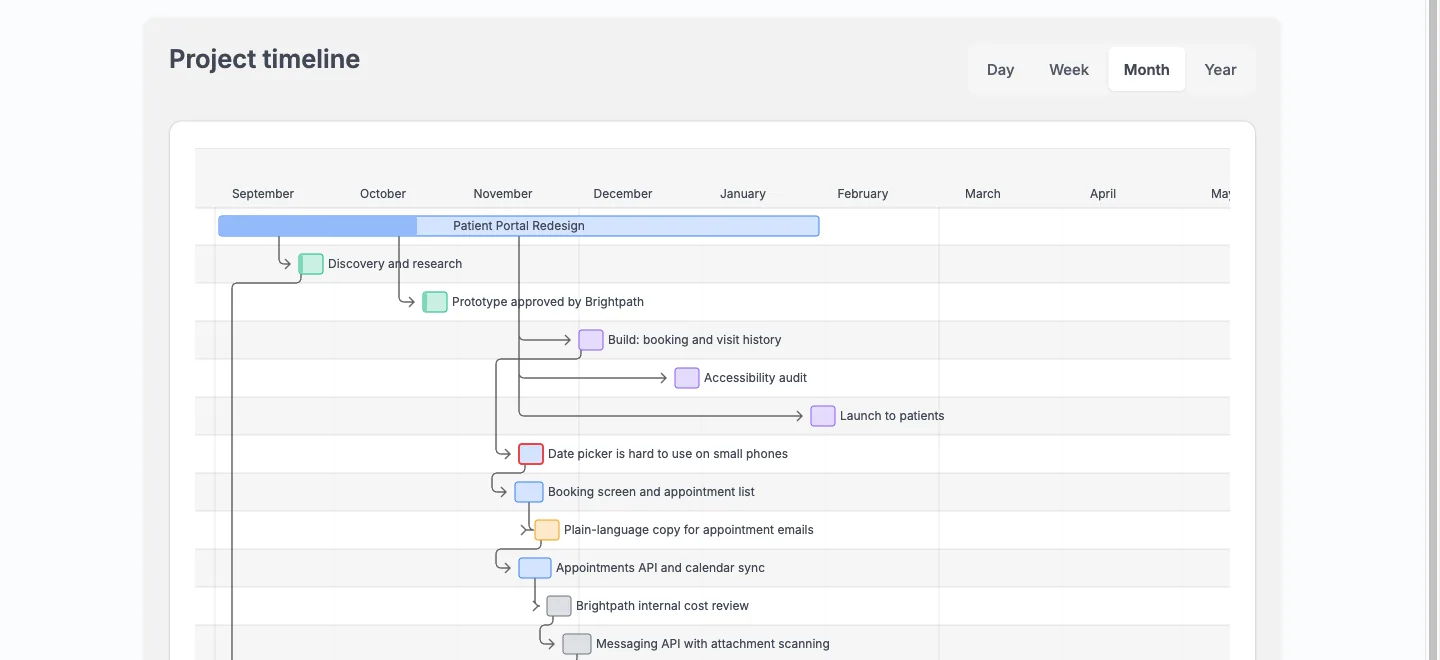
- Day 2. Open the Board, the task list, the Gantt timeline and the calendar. The same tasks appear in each.
- Day 3. Fix columns and labels. Rename or reorder Board columns to fit the team.
- Day 4. Invite two teammates. Ask them to work from their Hub for the day.
- Day 5. Recreate milestones by hand and add any dependencies you need on the Gantt.
- Day 6. Import the next project. Repeat the people matching.
- Day 7. Review. If the team did not open Asana, move the rest and archive the old projects.
If you work with clients, share one test project as a Viewer with the Client role and look at what they see. The client portal page shows the rules.
What if something goes wrong?
- “That file is not an Asana project export.” The file needs Asana’s Name and Section/Column columns. Export again from the project menu.
- The file is too large. Split the project, or ask your host to raise the limit. Developers can use the
kanbanomy_import_max_bytesfilter. - Someone is unassigned. They did not match a site user. Add them to the site, undo, and import again, or assign by hand.
- A date looks wrong. Check the date format under Settings > General. Slash dates follow that setting.
- The import went to the wrong place. Undo it from the Import log within 7 days.
More answers live in the troubleshooting docs.
What are the limits?
- Comments and files are not imported, because Asana’s CSV does not have them.
- Custom fields stay behind.
- Subtasks come across one level deep.
- Milestones and time entries are not imported.
- There is no invoicing, no native mobile app and no bundled translations.
- Clients cannot request timeline changes.
- Import is not a backup. Use a real database backup.
- Hundreds of projects with deep history are a big job. Budget time, or start fresh and keep Asana as an archive.
Who should not switch?
Stay on Asana if your work depends on its comment history, because that history will not come across. Stay if you want a vendor to host, patch and back up everything, since Kanbanomy is self-hosted. Stay if you need a native phone app or an invoicing tool in the same product.
If you are unsure, read the Asana alternative page, try the demo and import a single project. If it is not right, undo it.
Try it for this topic.
Open the guided demo, a client-services studio with real projects, or launch your own sandbox copy on InstaWP. Here is what to click:
- Open Kanbanomy, then Import, and look at the three sources.
- Open the import screen’s list of what comes across and what stays behind.
- Open a project in the demo and check the Board columns, labels and checklists an import would create.
Questions before you install
Why are my Asana comments and files missing after the import?
Asana's CSV export does not contain comments or files, so Kanbanomy cannot bring them across. Everything the CSV holds is imported. If you need old discussions, keep the Asana project readable as an archive or copy the key points into task descriptions.
Do Asana subtasks come across?
Yes, one level of subtasks does. Each subtask becomes a full child task in Kanbanomy with its own status and assignees. Deeper nesting is not carried, so check projects that use subtasks of subtasks.
What happens to completed tasks?
A task with a Completed At date arrives as Done, in the Done column. Open tasks land in the Board column that matches their Asana section.
Can I move several Asana projects at once?
Each import takes one project's CSV and creates one new project. Repeat the steps for each project. Doing them one at a time keeps every preview small and every undo exact.
Run the work. Share the result.
Self-hosted project management with no per-user fee, no per-project fee and a one-time licence. Try the demo first, then pick the licence that fits your sites.