
Project management software for agencies that already run WordPress.
Take a request, start a project from a template, do the work, share the right part with the client and see the hours. All on your own site, with no per-seat bill.
Agency project management comes down to one loop. A request arrives, you scope it, the team delivers, the client approves, and the hours turn into a bill. Kanbanomy puts that loop inside the WordPress site you already own. A form turns the request into a pending project. A template starts it. The Board, Gantt and calendar run it. The client portal shows progress. Time tracking and reports close it.
This page follows that loop in order, from the first request to the handoff. It ends with a weekly rhythm you can copy, the licence choice, and the work you should keep outside the tool.
How does an agency take in a request?
Start with an intake form. Build one under Kanbanomy, Forms. A form maps its fields onto a new project, so a submission becomes a pending project that waits for review. You can place the form on any page with a shortcode or the Project Form block.
Guest submissions are off by default. If you turn them on, a rate limiter and a honeypot protect the form from spam. Every install keeps a default public-submission form, so intake works once you publish a form page.
Pending work lands in one inbox, Kanbanomy, Approvals. It lists pending projects and submissions, and a live count badge shows how many are waiting. You approve or reject inline. When you approve a request from someone with an account, they join the new project as a Viewer, so they can follow progress and cannot edit tasks.
Two settings help larger teams.
- Approval routing. Turn on Restrict approval to the designated approver in Settings, General, then set an Approver on each project. Only that person and administrators can approve it. If no approver is set, any manager can, so nothing gets stuck.
- No self-approval. Nobody can approve their own project, even if they created it.
How do templates speed up a kickoff?
Most agencies sell the same five or six kinds of job. A template saves the structure of one so the next client starts ready.
Open a finished or well-shaped project and choose Save as Template. The template keeps the project’s tasks, milestones and Board columns. Then create new projects from it under Kanbanomy, Templates in one step. Rename the columns, change the dates and add the client.
A website build template might carry the same milestones every time, such as discovery, design, build, content and launch, with a standard set of tasks under each. A retainer template might carry a recurring task for the monthly report. Recurrence supports daily, weekly, biweekly, monthly and quarterly schedules.
The time you save is the part people forget. A template removes the blank-page step, and it makes every project look the same to the team, which helps when people move between accounts.
Which roles does a team need?
Roles work at two levels, and both must allow an action.
| Level | Roles | What they decide |
|---|---|---|
| Site | Administrator, Project Manager, Member, Client | What a person can manage, submit or view anywhere |
| Project | Owner, Member, Viewer | What a person can do inside one project |
The site roles Kanbanomy installs are Project Manager, Member and Client. You can edit the matrix under Settings, Access. Administrator is always forced to full access, so you cannot lock yourself out.
A sensible agency setup looks like this.
- Account managers are Project Managers, so they can approve work and see every project.
- Designers and developers are Members, and Members on the projects they work on.
- Clients are Clients and Viewers on their own project only.
- Freelancers are Members on named projects, so they see nothing else.
One warning. Subscribers can submit projects by default. If your site has open registration, clear Submit for Subscriber before you go live.
How does delivery run on Board, Gantt and calendar?
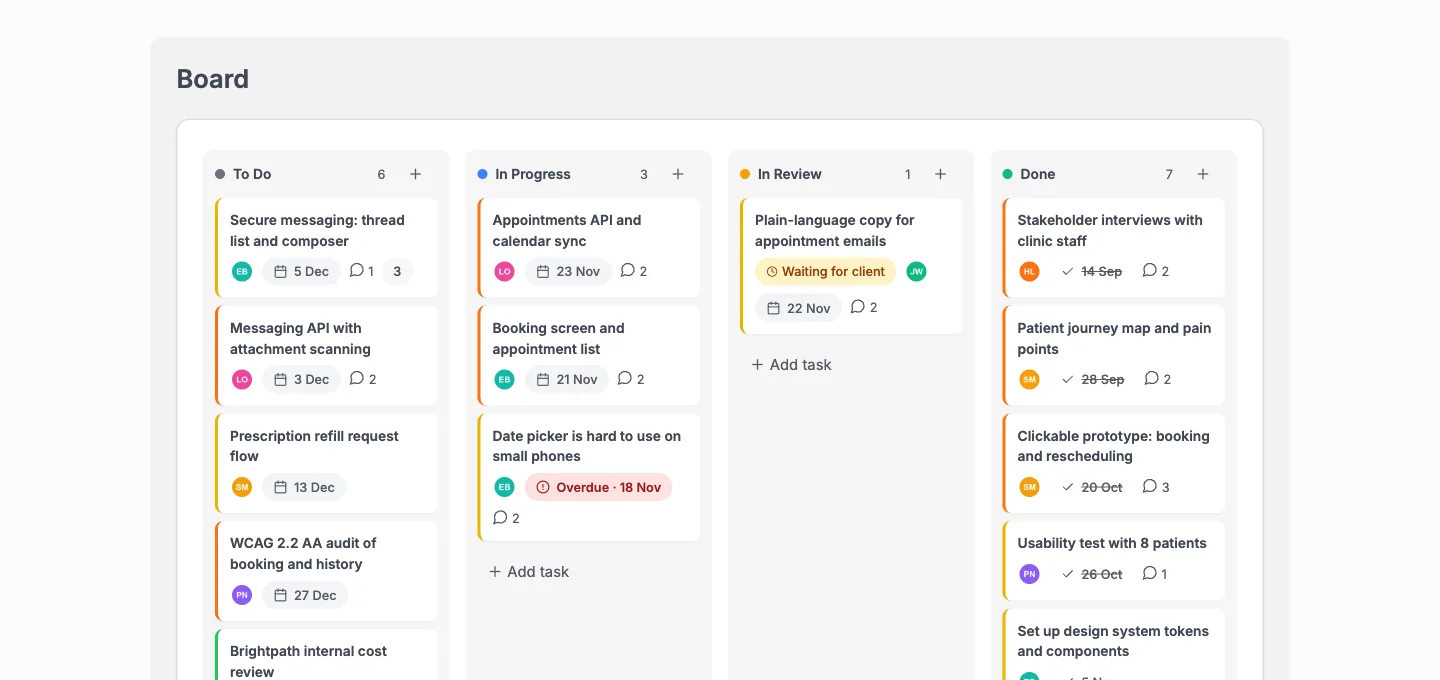
The same tasks show in four views. Move a card on the Board and the list, timeline and calendar agree.
The Board is for daily work. Cards show priority, assignees, labels, checklist progress and due dates. Columns are yours to rename, reorder, add or remove per project. A Board column shows its first 20 cards with the column’s real total and a link to the full list.
The Gantt is for schedule pressure. Dependency arrows show which task is holding another one up, and overdue work is marked. Managers can drag bars to reschedule.
The calendar is for deadlines by month. It spans every project a person can open and exports to any calendar app as an .ics file.
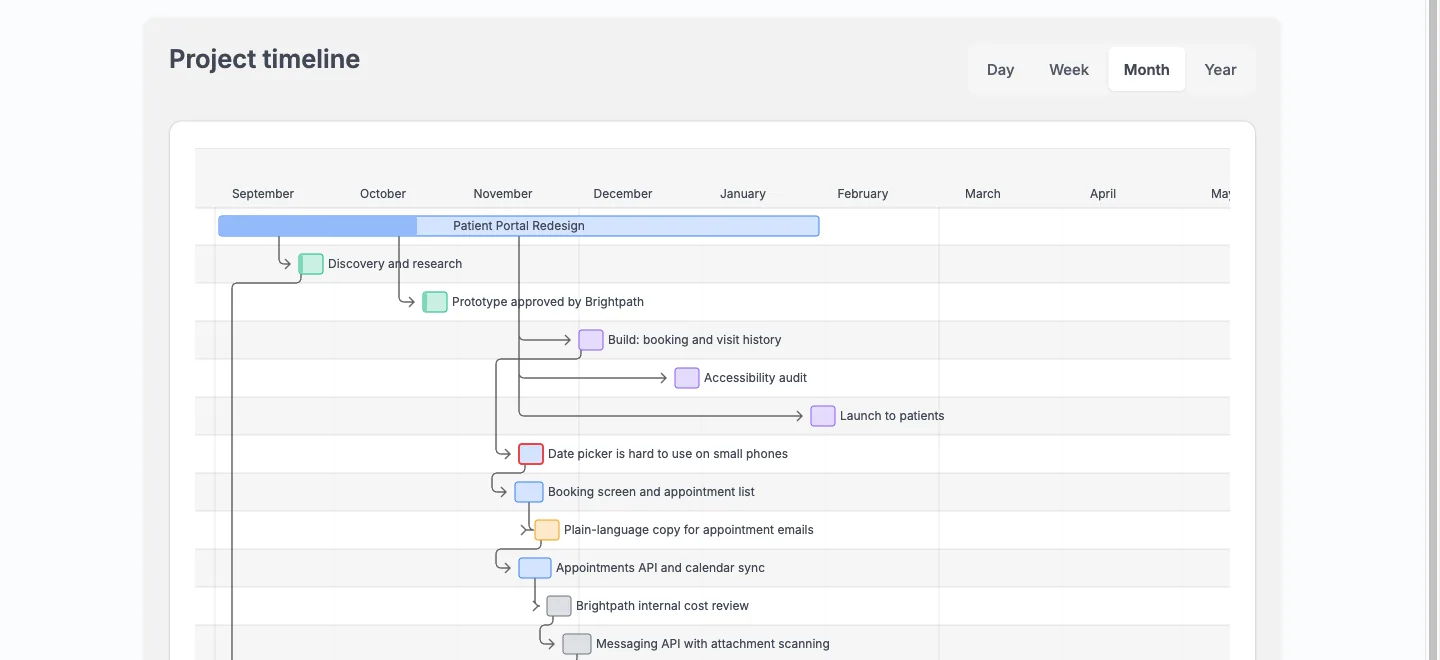
Tasks carry what a studio needs. They hold several assignees, labels, subtasks, dependencies, checklists, custom fields and file attachments. Comments support @mentions. Open any task from any view and the same panel opens beside the page, and each field saves as you change it.
Two people can have the same Board open. Changes appear within about 15 seconds without a reload, and if two people edit the same task, the second sees Keep mine or Reload.
What can you automate?
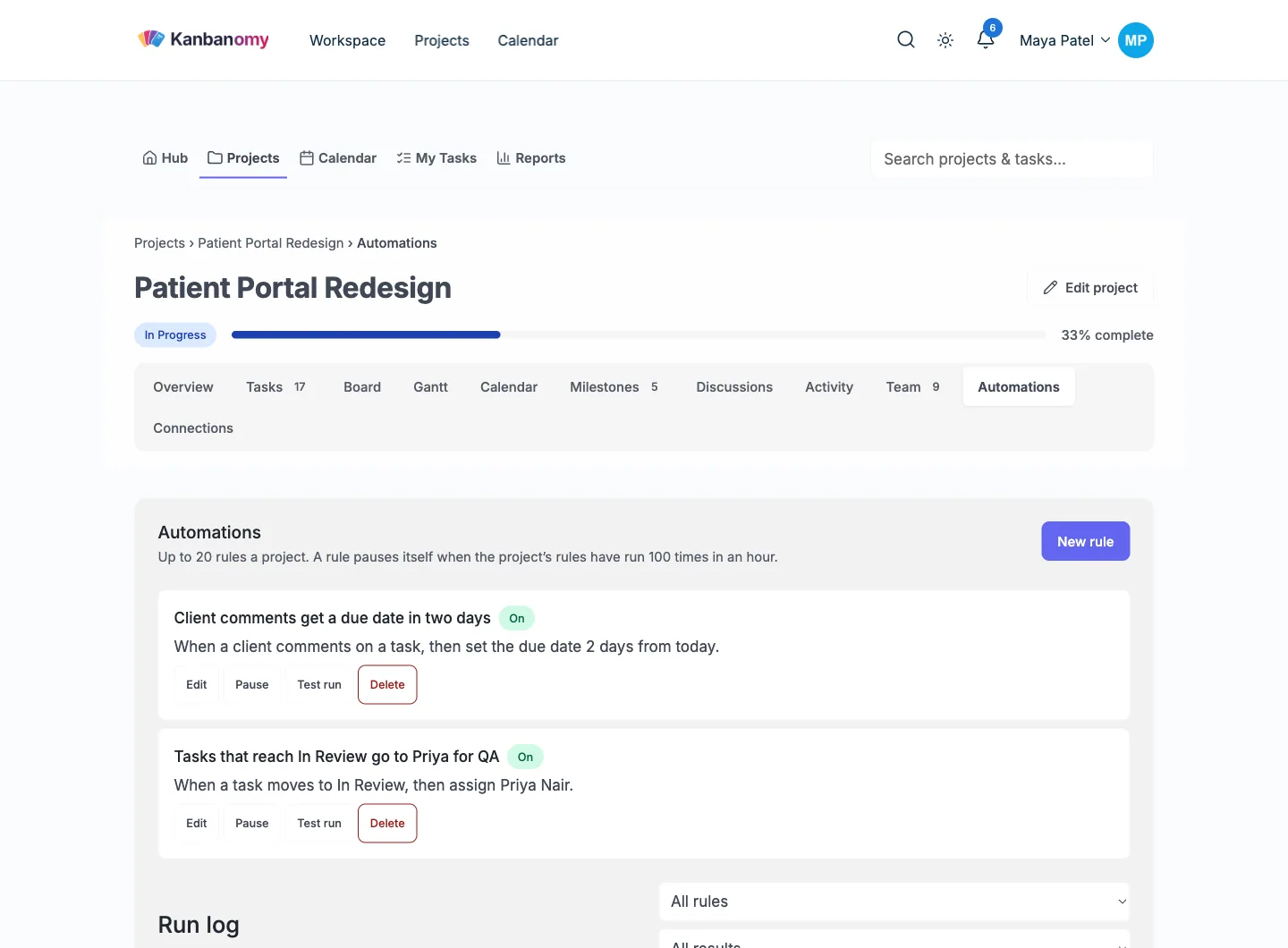
Automation rules take over the steps people forget. A rule has a trigger, optional conditions and an action. Each reads as one sentence in the form, such as when a task moves to In Review, notify the project owners.
| Part | Options |
|---|---|
| When | A task moves to a column, is created or becomes overdue. A client answers an approval. Someone comments. A person joins the project |
| If | Priority, label, assignee, Internal, due soon, no due date or title contains |
| Then | Assign a person, move to a column, set a due date, add checklist items, notify people or send to a webhook |
You can test a rule before it runs. A test run changes nothing and tells you whether the task matches. Every real run appears in a log, and most can be undone.
The limits keep rules safe. A rule does not start another rule, so loops cannot happen. A project can have up to 20 rules. If a project’s rules reach 100 runs in an hour, the next rule pauses itself and the owners get a notice.
A rule can notify clients, but never about an Internal task or a team-only comment.
How do approvals and client sign-off work?
When a deliverable needs a yes, tick Needs client approval on the task. The client gets an email and a bell notice, and the task shows Waiting for client on your Board. The client clicks Approve or Request changes and writes what should change. The answer lands in the task and in the activity log.
Approving does not change the task’s status. You move it when you are ready. Every round stays in the history, which is useful when a client later says they never saw a version.
You can also automate around it. A rule can trigger when a client answers an approval, for example to move the task to a Ready for launch column. The client portal guide covers what clients see and what stays hidden.
How do you track time and compare it with estimates?
Time tracking sits on the task. Open a task, press Start timer and a chip follows you across the Hub, Projects, Calendar and My Tasks. It keeps counting if you close the tab. You can also enter hours and minutes by hand with a note.
Some details matter for billing.
- Every entry is Billable or Non-billable. New time follows the project’s default, which is on.
- One timer per person. Starting a new one stops the first and logs its time.
- A timer left running stops at 12 hours and logs a note asking you to check the entry.
- Clients never see a timer, an entry or an hour total.
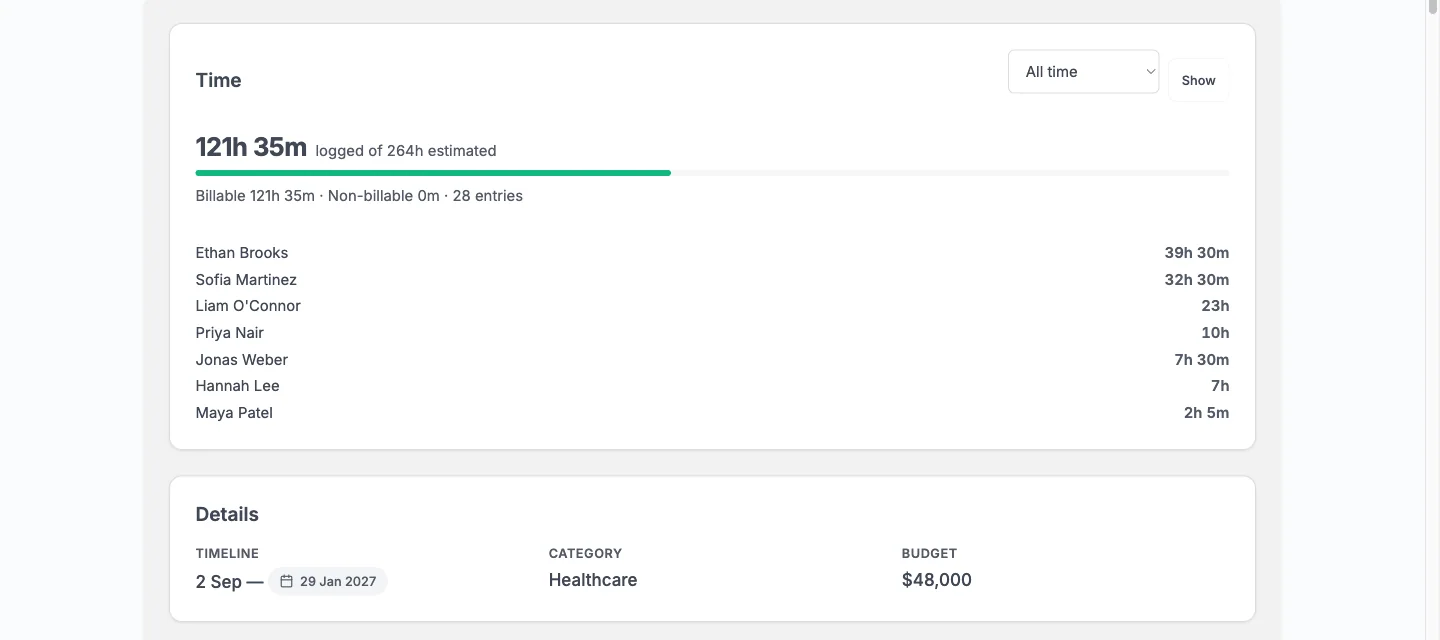
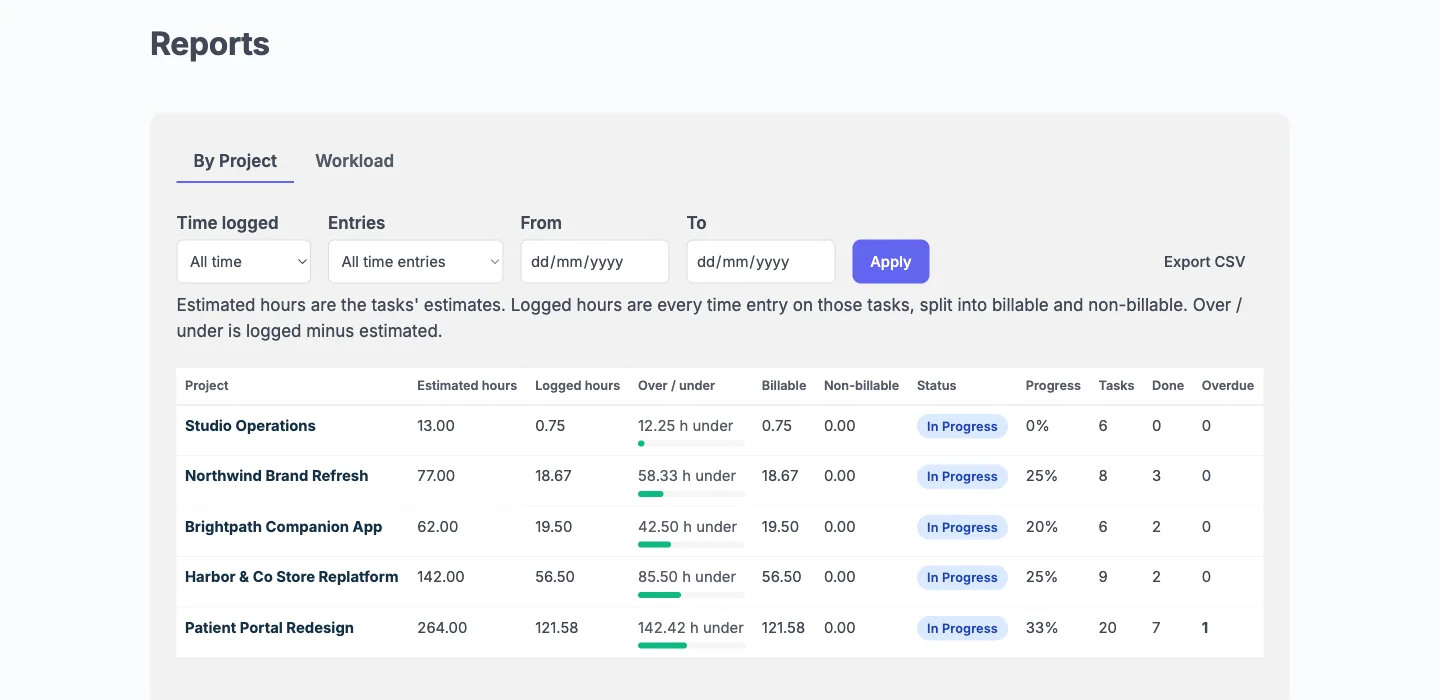
The project Time card on the Overview tab shows hours to date against the sum of task estimates, with a bar that turns red past the estimate. A range picker covers this week, last week, this month and last month, with a line per person.
What do the reports tell you?
Reports answer where you stand and who is overloaded. They have three parts.
- Overview. Projects and tasks by status, the overall completion rate and the overdue count.
- By Project. Total tasks, completed, overdue, estimated and logged hours for each project.
- Workload. Open tasks and overdue count per person, with estimated and logged hours and the billable split.
With All time selected, each row shows Estimated, Logged and Over or under, such as 4 h over. A row with no estimate shows No estimate. Choose Billable only to see just the hours you bill. Export CSV downloads the tab you are viewing, in batches, so it works at thousands of projects.
Project owners also see Reports on the front end for the projects they own. Team members see a My time page with their own row. Clients see no Reports page.
How do you run many client projects without chaos?
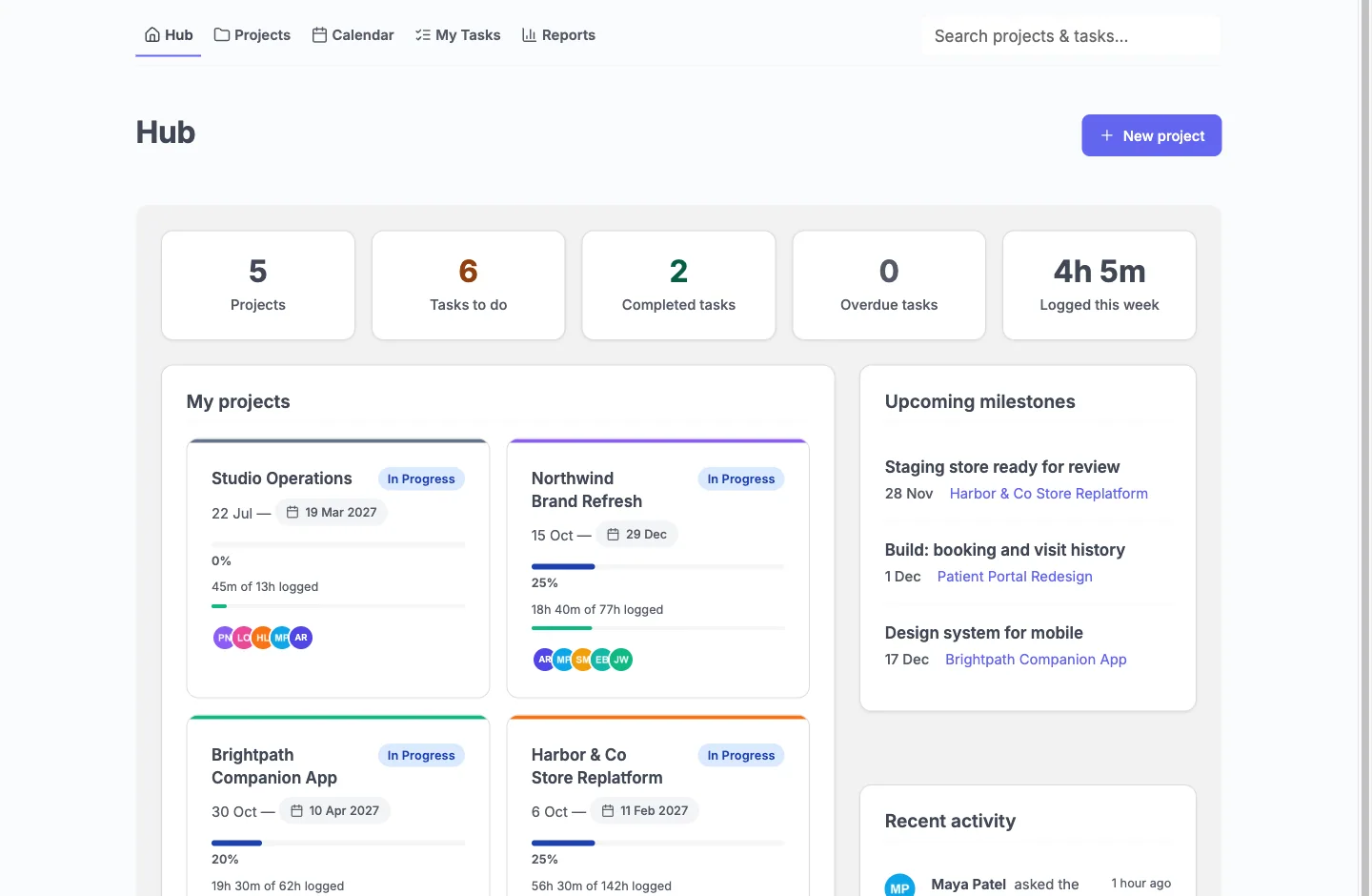
Keep one project per piece of work, and let the Hub do the rolling up. Each project has its own team, milestones and client view, so a late task on one account never hides inside another.
Habits that scale well.
- Colour code projects so they are easy to spot in lists, the calendar and the Gantt.
- Use saved views. Filter by status and assignee, then save the view. You can keep up to 50.
- Subscribe to your own calendar. A private link per person puts due dates in Google Calendar, Apple Calendar or Outlook.
- Post to Slack. Connect an incoming webhook for the site, or give one project its own channel. Slack never gets Internal tasks, team-only comments or budget figures.
- Use the daily digest. One morning email lists late tasks, tasks due today, new assignments and mentions.
For rolling several projects into one, the project type can be set to Master or Child.
Everything pages on the server. In the 1.3.0 scale test, a member of 300 projects loaded the Hub in under 210 ms, and a project with 5,000 tasks answered in 80 to 90 ms.
Which licence fits an agency?
You pay per site. There is no per-user fee and no per-project fee, so hiring a designer or adding a client costs nothing extra. Pay once if you pick a lifetime licence.
| Licence | Sites | Yearly | Lifetime |
|---|---|---|---|
| Personal | 1 | $69 a year | $199 once |
| Developer | 5 | $99 a year | $299 once |
| Agency | Unlimited | $399 a year | Not offered |
Every feature is in every licence, so the tiers differ only by how many sites you run. If your whole agency works on one internal site, Personal covers it. If you run Kanbanomy for up to five sites, Developer covers that, and Agency covers any number. A 30-day refund applies.
If a licence lapses, the plugin and all its features keep working. You stop receiving updates and support. See the pricing page for current terms.
What should you keep outside Kanbanomy?
Know the edges so you can plan around them.
- Invoicing. There is none. Export billable hours to CSV and invoice from your billing tool.
- Deal pipeline and ticketing. Keep sales and support queues elsewhere.
- Backups. Import and Export is not a backup. Run real database backups that cover all 25 tables.
- Email delivery. Your site sends mail, so use an SMTP plugin.
- Timeline change requests from clients. They comment and approve, and they cannot propose new dates.
- A native phone app. The interface works in a phone browser.
Moving in from another tool is covered by the Trello, Asana and CSV guides. No import brings milestones or time entries.
What does a weekly operating rhythm look like?
A rhythm keeps the tool useful. This one takes about an hour for a manager.
- Monday morning. Open the Hub and review late work across clients. Open Approvals and clear pending requests.
- Monday. Open Workload and rebalance anyone with a long overdue list.
- Daily. Each person starts from My Tasks and the morning digest.
- Midweek. Check Waiting for client chips and chase anything older than three days.
- Friday. Open Reports, check estimated against logged for active projects, and flag any over by more than you accepted.
- Friday. Export billable hours to CSV for invoicing, then close finished milestones.
- Month end. Review templates and update any that no longer match how you work.
Who should not use it?
Choose something else if you want a vendor to run hosting and uptime, if you need invoicing or quotes in the same tool, or if your clients must be able to drag your timeline to propose dates. Choose something else too if you do not use WordPress. If you are unsure, try the demo with both a team login and a client login. When you are ready, get Kanbanomy and start with one real client.
From request to kickoff.
Intake forms turn a request into a pending project in an approval queue. Approve it, start from a saved template and add the team.
Guest submissions are off by default, and rate limiting and a honeypot protect the form when you turn them on.
Run five clients without five workspaces.
Each client project has its own team, its own milestones and its own client view. The Hub shows what is late across all of them.
Developer covers five sites and Agency covers unlimited sites, so the licence follows your client work, not your headcount.
Hours that explain the invoice.
Log time on tasks, split billable from non-billable, and compare logged hours with estimates for every project and every person. Export to CSV for your invoicing tool.
Kanbanomy has no invoicing of its own. It gives your billing tool the numbers.
Agency questions
Is there a per-user or per-project fee?
No. Kanbanomy runs on your own WordPress site, so your team and your clients are users of a site you already host. Add as many people, clients and projects as you like. The licence is priced per site, and a one-time lifetime licence is available.
Is Kanbanomy a Trello alternative for WordPress?
Yes, if you want boards inside your own WordPress site. It has Trello-style boards plus a Gantt timeline, a calendar, time tracking and a client portal, and it imports a Trello board with its lists, cards, labels, checklists and comments. It also imports Asana projects, so it works as an Asana alternative too.
Is there a WordPress client portal plugin with boards and approvals?
Kanbanomy is one. Clients get a Client role with no wp-admin, follow the tasks, milestones and Gantt you share, comment, and approve work when you ask. Internal tasks, team-only discussions and logged time never reach them.
What does one licence cover?
Personal covers one site, Developer covers up to five and Agency covers unlimited sites. Every feature is in every licence, so the tiers differ only by how many sites you run.
What happens if I stop paying?
Nothing breaks. Every feature works without a licence key, and a lapsed licence keeps working forever. You stop receiving updates and support. Deleting the plugin also keeps your data unless you opt in to destroying it.
Can I move my Trello or Asana boards in?
Yes. Trello (JSON) and Asana (CSV) import with a preview first, and you can undo an import for 7 days. Anything else, including Jira and Monday, comes in through a spreadsheet. No import brings milestones or time entries, and Trello files and archived cards stay behind.
Run client work on the site you already own.
Self-hosted project management with no per-user fee, no per-project fee and a one-time licence. Try the demo first, then pick the licence that fits your sites.